// HACKER NEWS — CYBERSECURITY
FreeBSD on Aoostar WTR Pro NAS
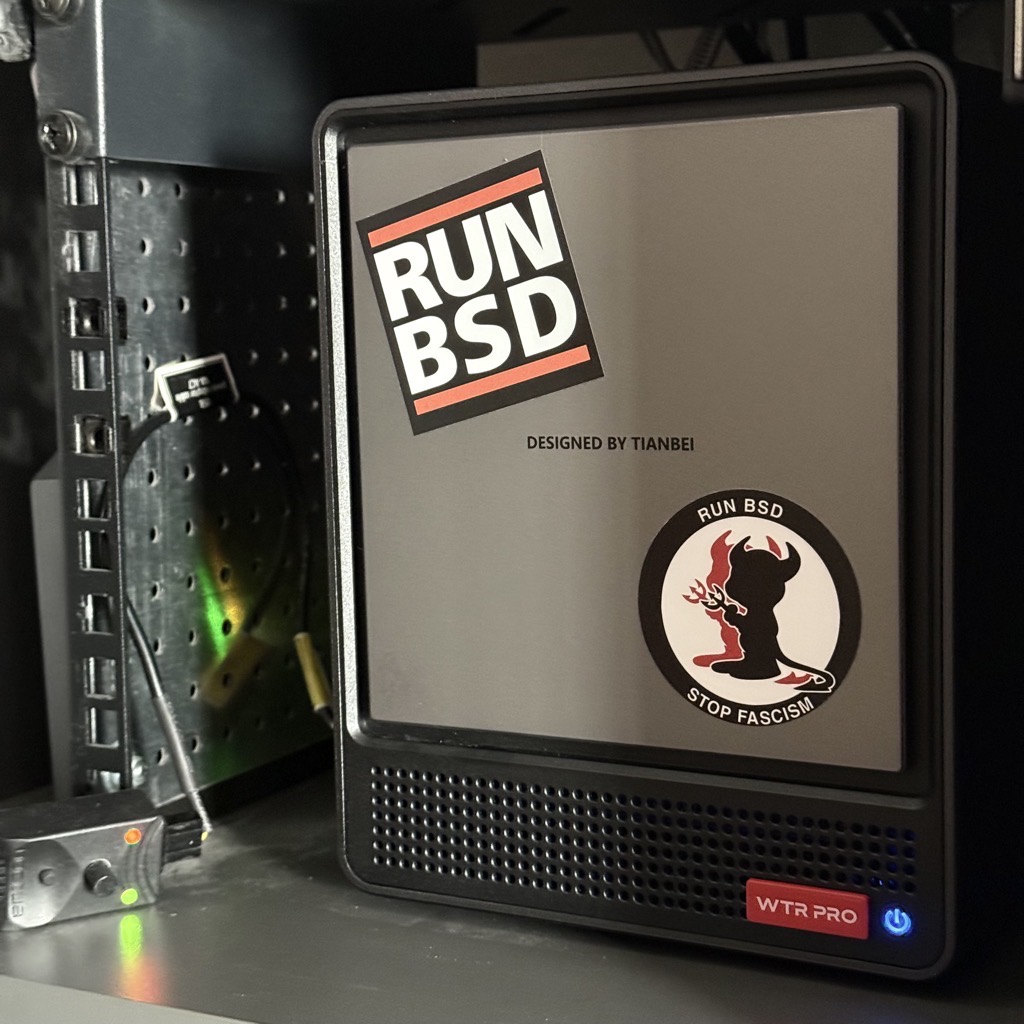
Finding a NAS that provides NVMe and SATA storage while being tiny
enough to sit in my 10" rack, have a CPU that’s not hogging, use a
small amount of watts and offers usage of a non-proprietary OS is not
simple. Especially when you have the “must run any BSD” to the equation.
But here we are, the AOOSTAR WTR Pro Ryzen edition meets all my
prerequisites. And here’s what I discovered.
Note that I aimed this machine at running FreeBSD. So I just had a quick look
at other BSDes just to get a rough idea of what you get “by default”.
It’s not a fair features and power usage comparison. I spend way more
time tuning FreeBSD.
The case is using metal, not plastic. And in a 25-27 degC room, it
always feels rather cold to the hands. It also fits pretty well in my
10" rack space.
RAM and NVMe slots are located beneath the machine and accessible using
screws. The slots are numbered so that you don’t have any surprise when
you plug stuff and look and the IDs in the OS. If you ever care about
this…
The SATA disks are accessible from the front. The front cover uses magnets to
stay in place and hide the caddies and LEDs. The caddies have click and
pull mechanism. 3.5" SATA disks are set and removed using a tool-less
mechanism that is quite smart. 2.5" SATA disks need to be fixed to the
tray using screws. Those are a bit less trouble free. It took me quite a
few tries & fails to succeed in plugging the 2.5" disks in. You seem to need
to lift the caddy up a bit. But once it’s done, everything goes as
expected. Also, SATA disks are numbered from bottom (SATA 1) to top
(SATA 4). This may be important if you have to deal with device number
IDs.
The fan is quite noisy by default and produces a low-pitched sound.
Also, I don’t know how to describe it but you hear the metallic case in
that sound.
Here’s YouTube videos I watched before buying that machine:
SecureBoot is disabled by default. Running FOSS system is
straightforward. Hitting on boot gets you to the selection menu
while hitting gets you to the BIOS.
With a single 32 GB memory module and no storage at all, waiting in the
BIOS’ PC Health Status page uses about 28 W. System Temp is 26 degC, CPU
Temp is 68 degC, CPU Fan speed around 1900 RPM, System Fan Speed around
820 RPM. That explains the whistling noise…