// 9TO5MAC — MOBILE & WEB
Apple vs. Adobe: How does iOS 27’s AI photo editing compare to Photoshop?
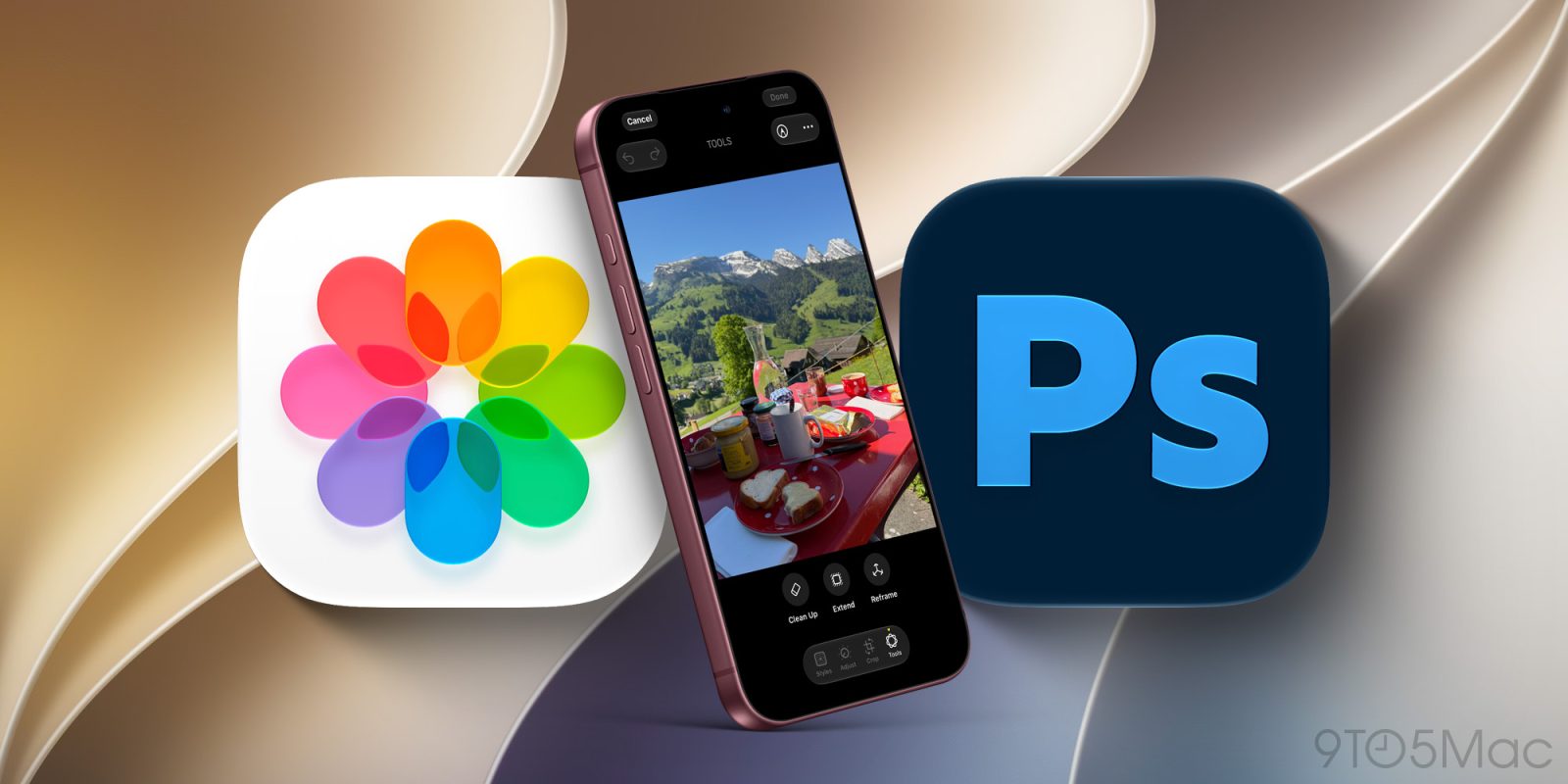
I’ve been using Photoshop’s generative AI features to remove unwanted objects and extend photos since Adobe introduced them in 2023. They’ve been hit or miss for me, but they’re certainly a lot faster than the old-fashioned approach of masking, cloning, and manually painting things out. But with iOS 27, Apple has significantly improved its Clean Up tool and introduced the new Extend tool, and I was curious to see how Apple’s offerings compare with Adobe’s. So, with the help of a friend, I put both to the test using a variety of photos to see how they stack up.
For this article, my friend Jürg was kind enough to provide several photos from his travels throughout Switzerland and Europe. He takes much better photos than I ever could, and takes pictures of more exciting subjects than my corner of Ohio has to offer. You can see more of his photography on Instagram. I narrowed the selection down to six photos: three to test object removal and three to test image extension.
All photos were shot on an iPhone 17 Pro Max and edited on an iPhone 18 Pro Max running iOS 27.0. The Clean Up tool in iOS 27 has three options: Auto, Fast, and High Quality. I left the setting on Auto for all three tests.
Photoshop tests were done on a MacBook Pro running Adobe Photoshop 27.10.0 using the “Firefly Fill & Expand” model. I selected the objects using either the Object Selection Tool or Lasso Tool, then chose Generative Fill and left the prompt box blank.
For the Extend tool, I used whatever extension Photos selected by default. The Extend tool in Photos limits how far you can expand the edges of an image, while Photoshop doesn’t have the same restriction. To keep the comparison as consistent as possible, I used the result from Apple’s Photos as my reference, and had Photoshop create something in a similar size.
I made every effort to keep the HDR appearance as consistent as possible between the photos edited in Photos on iOS 27 and those edited in Photoshop, but there was some minor variation.
First up is the removal of this red chair in front of the yellow door. This was the first photo I tested with the new Clean Up tool, and I have to say, it left quite a positive impression. The result looks very believable, and the only real mistake I noticed is that the rivet behind the chair’s left armrest was also removed instead of being correctly reconstructed. It’s not something I’m convinced most people would notice, though, and it would be an easy fix to clone back in with Photoshop. I was particularly impressed by how the shadow beneath the chair was replaced with a texture that matches the surrounding scene while also maintaining the existing lighting.
Photoshop doesn’t do as good a job as Apple’s Clean Up tool here. The chair’s shadow remains and looks more like an oil stain. The door’s rivets are misaligned, and one is obviously missing. The replacement texture also contains significantly more visual artifacts. Overall, it isn’t nearly as clean or realistic as what Clean Up produced.
I was really impressed with Clean Up’s results here. Not only did it remove the plate with bread, but it also added a nice reflection of the mug and jars. Notice it even got the handle of the spoon right in the reflection. A nice detail. Clean Up also completely removed the plate’s shadow from the napkin. I thought removing a red plate from a red table of the same color might prove more of a challenge for Clean Up, but nope! If I had one nitpick, it’s that Clean Up left the crumbs from the plate, though removing them would be very easy to do by running Clean Up again over that area.
Photoshop removed the plate with bread well enough, but again, it had issues with leaving behind an out-of-place shadow. The napkin looks dirty or wet here, but at least Photoshop didn’t leave behind as many pesky crumbs.