// ENGADGET — MOBILE & WEB
How to connect an Apple Pencil to your iPad
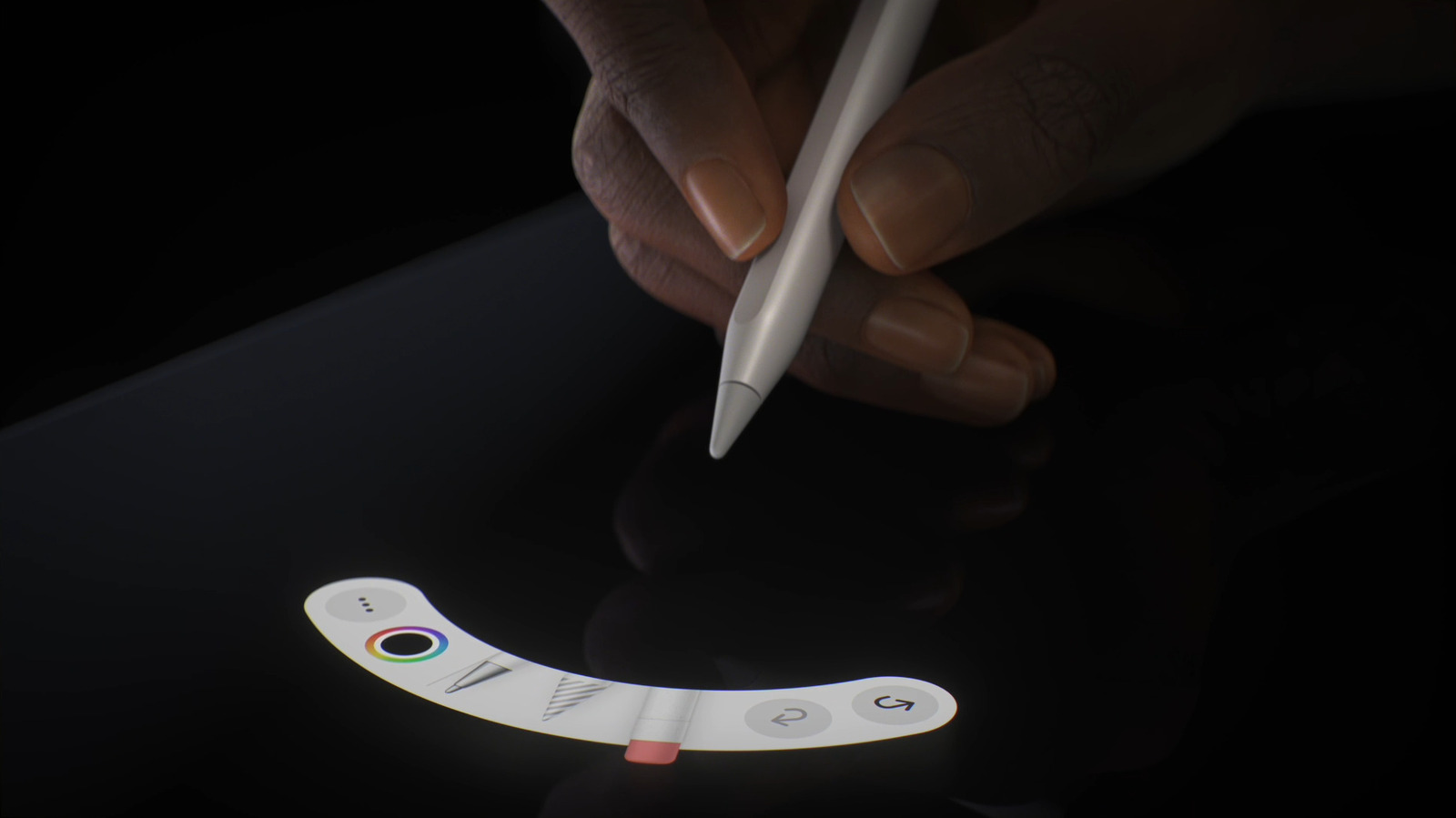
Getting your Apple Pencil linked with your iPad is easy, as long as they're compatible.
We may receive a commission on purchases made from links.
Contrary to the impression Apple gives, you don't need an Apple Pencil to use an iPad. As input accessories go, you're probably better off picking up a keyboard and mouse for your iPad first. But with a giant touchscreen, illustration and handwritten notes are obvious selling points, and you need some sort of stylus to make that work. The company is naturally going to upsell you on its own accessories, regardless of whether cheaper alternatives might get the job done.
Pairing an Apple Pencil to an iPad is dead simple, for the most part. But there is a process, plus surprising compatibility issues can crop up. You'd think a stylus would be one of the simplest accessories possible, but Apple's evolving iPad ambitions have created a few roadblocks.
We'll also deal with a few general troubleshooting issues, though chances are that you'll be up and drawing within a few minutes.
The exact pairing process depends on the Pencil model you own. In the case of the USB-C Apple Pencil, slide open the end of the stylus to reveal the USB-C port, then connect it to your iPad using an appropriate cable. A pairing prompt should appear on-screen, at which point all you need to do is hit Tap to Connect. As a bonus, your Pencil will charge at the same time. This also works with the iPhone Duo, which is only compatible with the USB-C Pencil.
The process is even simpler with the Apple Pencil Pro. Once you've unboxed it, let it clip magnetically to the long side of your iPad. That's it — you're ready to go in seconds. This is also how you charge the Pencil Pro, and how you'll likely store it most of the time unless you're worried about it being knocked off inside a bag or suitcase. Meanwhile, the second-generation Pencil pairs just like the Pro.
If you've got a first-gen stylus, you'll need to remove its cap, plug it in via its Lightning connector, then tap Pair. In case you're using the original Pencil with a USB-C base iPad (either the 10th gen or A16 model), you'll need a Lightning to USB-C adapter.
Unfortunately, the first-gen model and USB-C Pencil must be re-paired every time you restart your iPad or disable Bluetooth.
Your first concern is those compatibility issues we mentioned. The first-gen Pencil is intended for Lightning-equipped iPads; it won't work with newer USB-C iPad mini, Air or Pro models. The base iPad models from 2022 and 2025 support it with an adapter. Meanwhile, the second-gen Pencil is limited to certain iPad models that aren't too old or new.