// ENGADGET — HARDWARE & GADGET
6 handy ways you can use your old mini PC
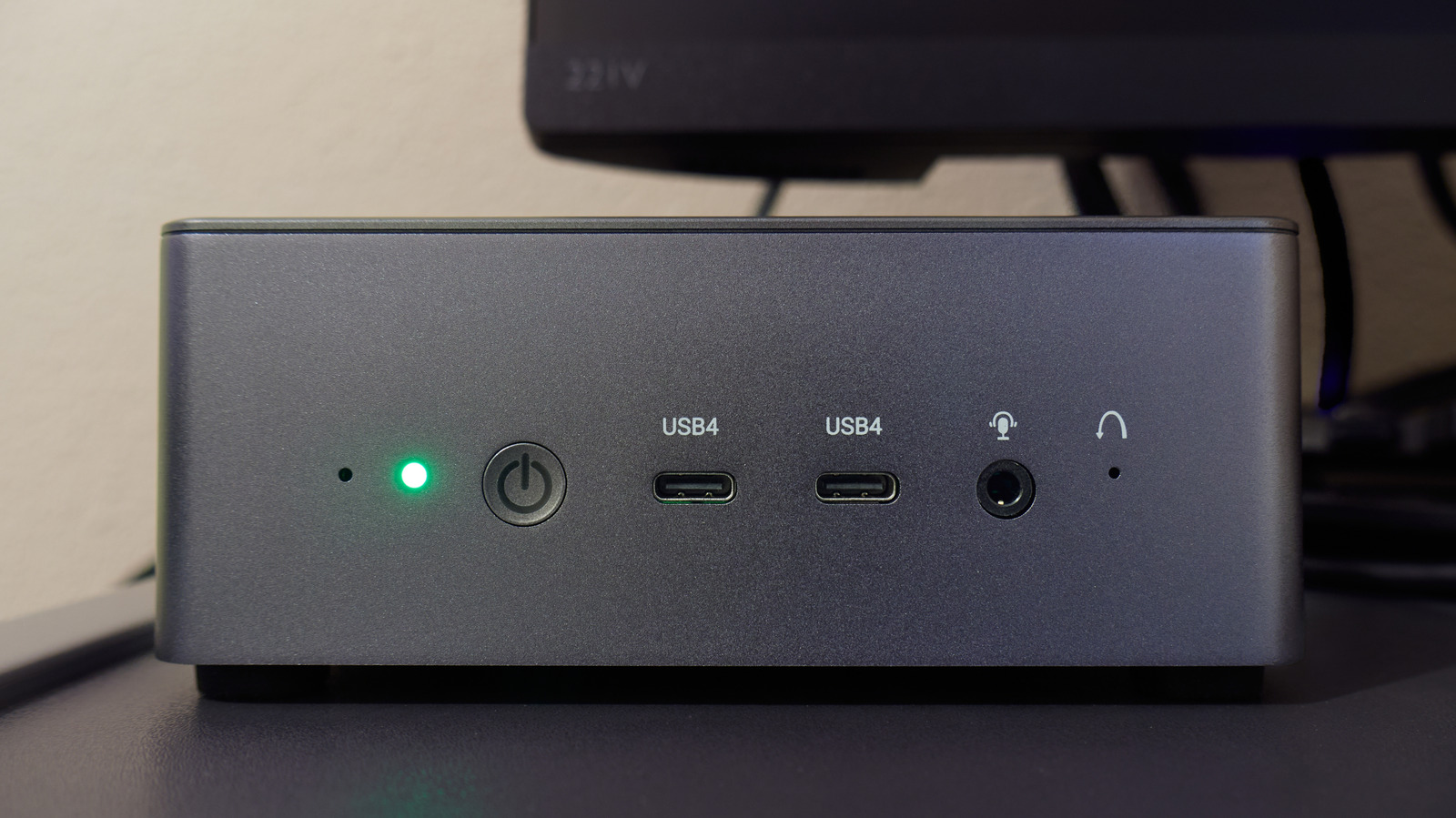
Building or upgrading a PC isn't as thrilling as it once was, especially with the AI takeover. If RAMageddon has left a bitter taste in your mouth, an old mini PC you have lying around might be worth putting to use. Sure, it won't get magically faster, but replacing it has certainly gotten expensive.
The cool part is that this little box can become your retro gaming console, host your media library, or even serve as a dedicated AI coding workstation. But a lot of what you can do with it does depend on what's under the hood. Some projects require only free software, while others may require some hardware and patience. So here are six ways to get one working again.
While your old mini PC may not handle the latest AAA games, it could make a great retro gaming console. Batocera is a free, Linux-based operating system you can use to turn it into a dedicated machine for playing Nintendo, Sega, and PlayStation classics.
It is fairly easy to get started. Download Batocera's PC image, flash it onto a USB stick, and boot your mini PC from it. This lets you test the operating system without replacing Windows, though you may need to disable Secure Boot or enroll Batocera's signing key to get it running. If Windows uses BitLocker, make sure you have your recovery key before changing Secure Boot settings.
Once it's up and running, you can connect the mini PC to your TV via HDMI, pair a compatible controller, and add your legally acquired games. Batocera arranges everything in a console-style interface, so you can easily navigate your library without a keyboard.
Performance will vary depending on hardware. Many older mini PCs can handle 8-bit and 16-bit games, but the PlayStation 2 and GameCube may be a bit of a challenge. Another way to play compatible PC games on your TV is Steam's Big Picture Mode, if your machine is powerful enough. But don't count on a controller to make up for an outdated processor and integrated graphics.
An old mini PC can also be a dedicated home for your movie and music collection. Plug it into your TV, install Kodi, and you have a media center to browse and play stored content locally. If you want to view your library on several devices, Plex and Jellyfin can stream your files to compatible TVs, phones, and tablets over your home network.
However, you should consider hardware restrictions first. A video played in its native format typically uses less processing power than one converted on the fly for an incompatible device. That process, known as transcoding, can strain older processors, especially with 4K content.
Plex also requires a Plex Pass or Remote Watch Pass for remote personal video streaming on affected apps, unless the server owner already has Plex Pass. Local streaming remains free. Jellyfin doesn't charge for remote streaming, but you have to set it up yourself.
You can also turn the mini PC into a network-attached storage (NAS) device. Attach an external SSD or hard drive and share files on the home network with software like OpenMediaVault. It's a practical solution for storing family photos, documents, and backups without relying on paid cloud storage.