// ENGADGET — MOBILE & WEB
How to personalize the screensaver on your Kindle
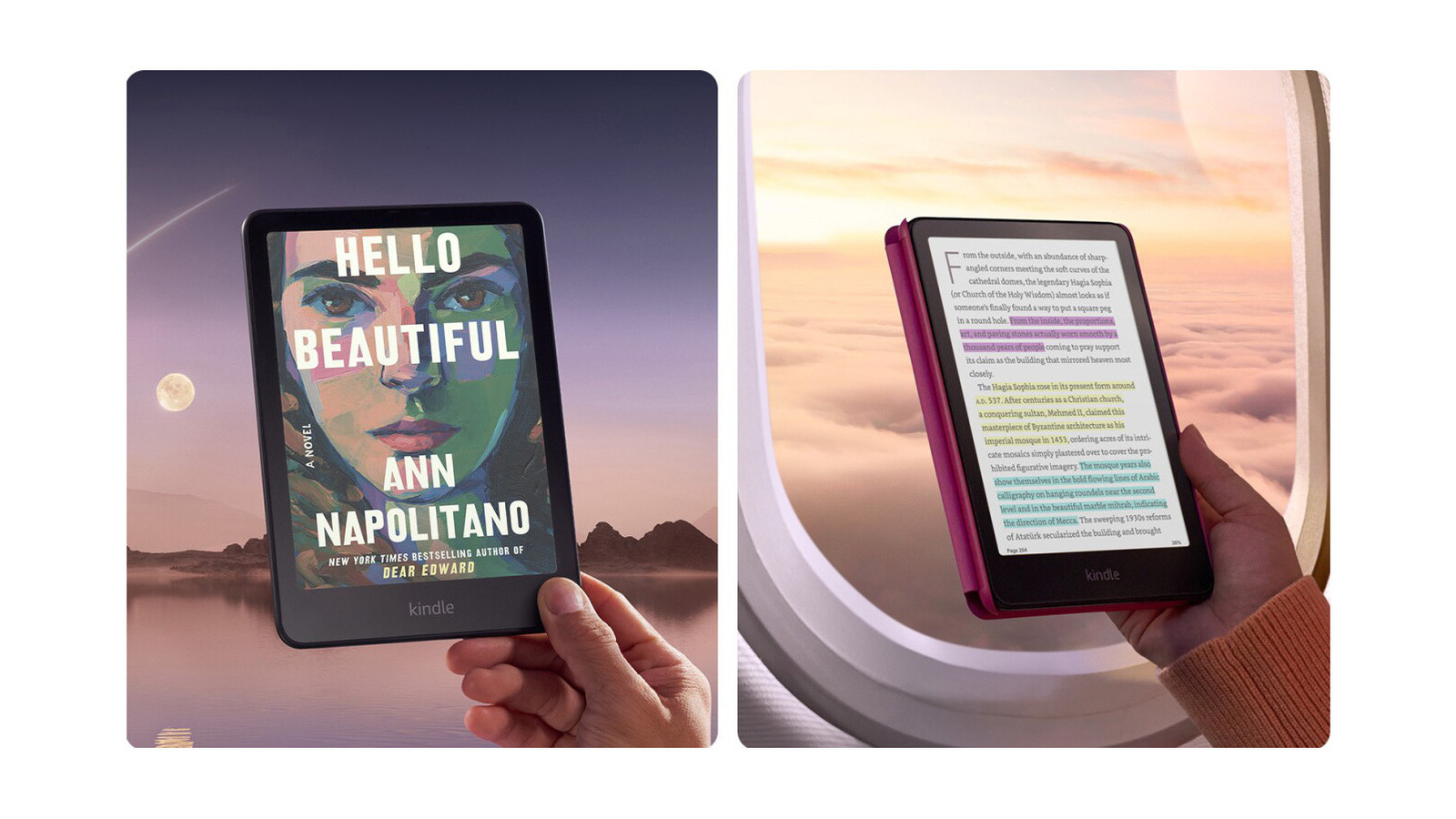
With some care, you can customize what appears on your ereader’s sleep screen.
We may receive a commission on purchases made from links.
So, you're tired of seeing rotating ads or Amazon's preloaded graphics on your Kindle every time you put it to sleep. That's understandable, especially if you're voracious reader who's been spending a lot of time on your ereader. In this piece, we're going to walk you through how to change your Kindle sleep screen and even how to personalize it if you want.
Kindles with Special Offers or lockscreen ads typically cost $20 less than the versions without them. These devices will show you a rotation of advertisements for books, for more Kindle devices or for Kindle Unlimited whenever you put your Kindle to sleep. As long as your device is ad-supported, you cannot customize your screensaver, so your first step is removing Special Offers from your ereader, which will understandably cost you some money. If your Kindle doesn't have lockscreen ads, you can skip this step. But if it does, you can follow these instructions:
1. On desktop, go to the Amazon website, log in and click the hamburger menu on the left side of the screen.
NOTE: If you're not in the US but somehow have a US-version Kindle, you might have issues removing lockscreen ads. Amazon will ask you to add a US address and a card with US billing to be able to pay $20 for their removal. Without both, it won't be possible to proceed to the next step. You can try talking to customer service and asking kindly if they can disable special offers for you at no cost, but there's no guarantee that that will work.
Once you're done getting lockscreen ads removed, or if you never had them in the first place, you'll get a rotation of Amazon-provided illustrations as your screensaver. Those who own newer Kindles have the option of using the cover of the book you're currently reading instead (see below for a full list of supported models). To make sure this feature is turned on, follow these steps:
NOTE: The option to use book covers as screensavers is only available on the following models:
Unfortunately, there's no way to use custom images as your permanent Kindle screensaver without jailbreaking your device. There is, however, a trick you can consider: Replacing the cover of a book with the illustration you want to see, then opening it before locking your device. Before you proceed with the instructions below, make sure you've already completed the steps above to toggle on the option to display book covers as your lockscreen.
NOTE: You will have to switch to the book that uses your custom cover before you put your device to sleep every time you want to see it on your lockscreen. Alternatively, you can change the cover of every book you read, though that sounds pretty time-consuming, especially if you blaze through books quickly. While this solution isn't very straightforward, it's an effective way to personalize your device.