// HACKER NEWS — CYBERSECURITY
Excel now supports multiple values in a single cell
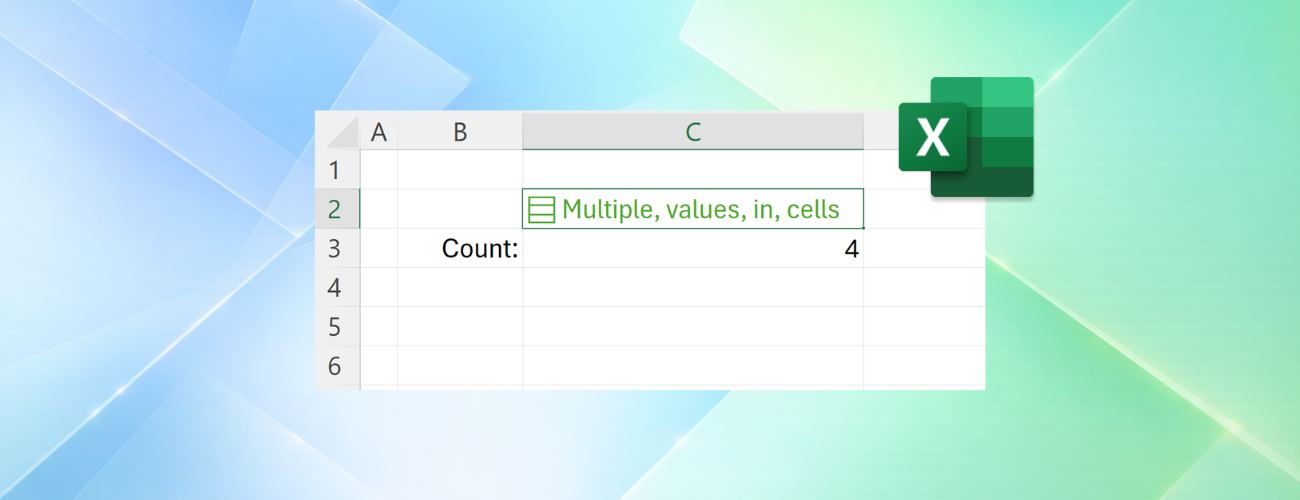
Throughout Excel's 40-year history, you've only been able to put one value per cell. In this announcement, we're excited to share how that's changing with the release of lists, arrays in cells, and nested arrays, initially to Microsoft Excel for Windows and Mac Beta Channels.
Many workbooks already try to pack multiple values into one cell. A project might list "Carlos, Henrietta, Jacob" as three owners, or a Forms survey might return "2:00 PM; 2:30 PM; 3:00 PM" as one response. With lists, you can keep those values in one cell, while also keeping them separate for filtering, calculation and more.
Later in this post, we'll explore arrays in cells and nested arrays in more depth.
NOTE: These are preview features. Their behavior may change before general release based on your feedback. We don't recommend using them in important workbooks until they're generally available.
Lists let you put multiple values into one cell. You can create a list by selecting Insert > List or pressing Ctrl+J, then typing or pasting items separated by commas or semicolons, depending on your regional settings. Selecting the icon in the cell shows the individual values.
You can add, remove, or edit list items by double-clicking the cell or pressing F2, just like other values.
With lists, you can filter by one or more individual items instead of whole text entries.
Referencing a list returns all its values for calculations. For example, =B2 spills those values into separate cells.
Lists are useful on their own, but they're part of a much broader change to Excel. For the first time in Excel, arrays can exist natively in cells as values or as formula results. They can be any size or shape and can even contain other arrays.
You can now keep the result of any spilling formula in a single cell by "wrapping" the formula body with braces { }.