// ENGADGET — GAMING
5 tips and tricks every PS5 owner should know
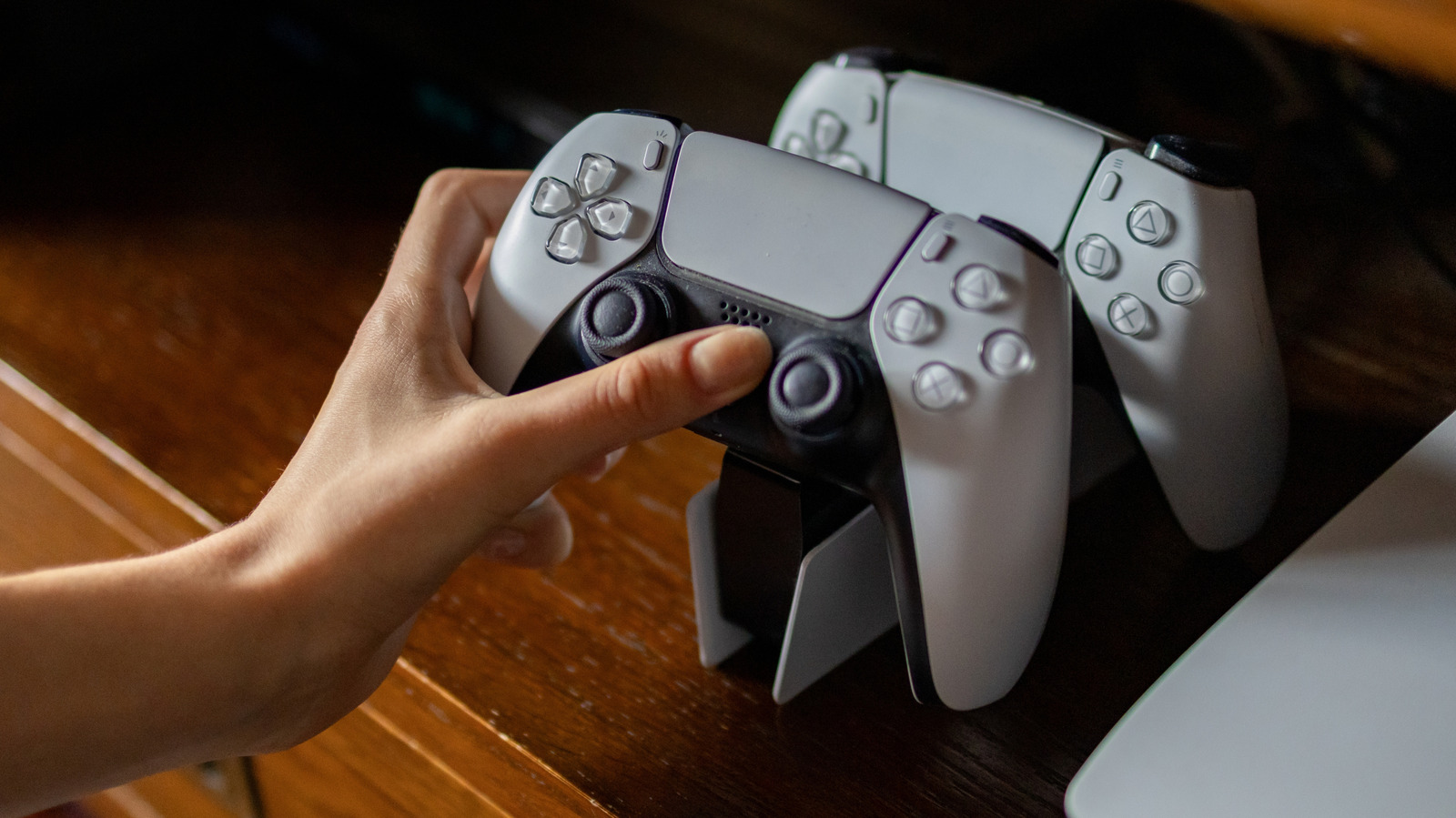
The PS5 has several quality-of-life features that save time and reduce annoyances.
When you fire up your PlayStation 5, you presumably want to get into a game instead of messing around in menus. Unless you're waiting for an update to install, you probably aren't eager to see what's buried within the Settings tab. But if you're a new PlayStation 5 owner or it's been a while since you tweaked your settings, you may have overlooked important options that make every play session better.
The PS5 has several quality-of-life features that are buried deep but have been expanded over the years. While the default options of the console aren't inherently bad, they can waste your console space, send unnecessary alerts and prevent the console's standout features from working at their best.
These options save time, reduce annoyances and make sure you're getting the most out of your console, so try them out for a superior experience.
By default, your PS5 captures a screenshot and video every time you earn a trophy. While it's cool to save a record of major achievements, not all trophy rarities deserve a video clip. These can quickly eat up a lot of storage space, especially if you play many different games and go for trophies.
To change this, go to Settings > Captures and Broadcasts > Captures > Trophies. I recommend setting Save Trophy Videos to Platinum, Gold so you save big moments without flooding your system with videos for random bronze trophies. Set the Trophy Video Duration to 15 seconds to save space unless you want the longer 30 seconds for full context.
While screenshots don't take up as much space as videos, adjusting the Save Trophy Screenshots option is also worthwhile if you don't care about those.
Two of the DualSense controller's standout features are its improved rumble and adaptive triggers. While many games let you turn these off entirely, if you find them overwhelming, try adjusting their intensity instead of outright shutting them off. Head to Settings > Accessories > Controller, where you're able to change Vibration Intensity and Trigger Effect Intensity.
Also in this menu, adjust Brightness of Controller Indicators if you find the colored light bar on the controller too dim or bright. Not every game uses this, but it can be distracting to see a constant red light while you're at low health, for example.
The PS5 controller has a mic built-in, which can work as a backup if your headset is dead. But when this mic is active, your system reduces the vibration and adaptive trigger intensity to minimize the amount of noise it picks up. To avoid this, go to Settings > Sound > Microphone and change Set Microphone Status When Logged In to Mute. This also prevents you from accidentally sharing audio in an online game. And if you ever need to mute all sound coming from your PS5, press and hold the Mute button for a moment.