// ENGADGET — MOBILE & WEB
10 things your iPhone's Notes app can do other than taking notes
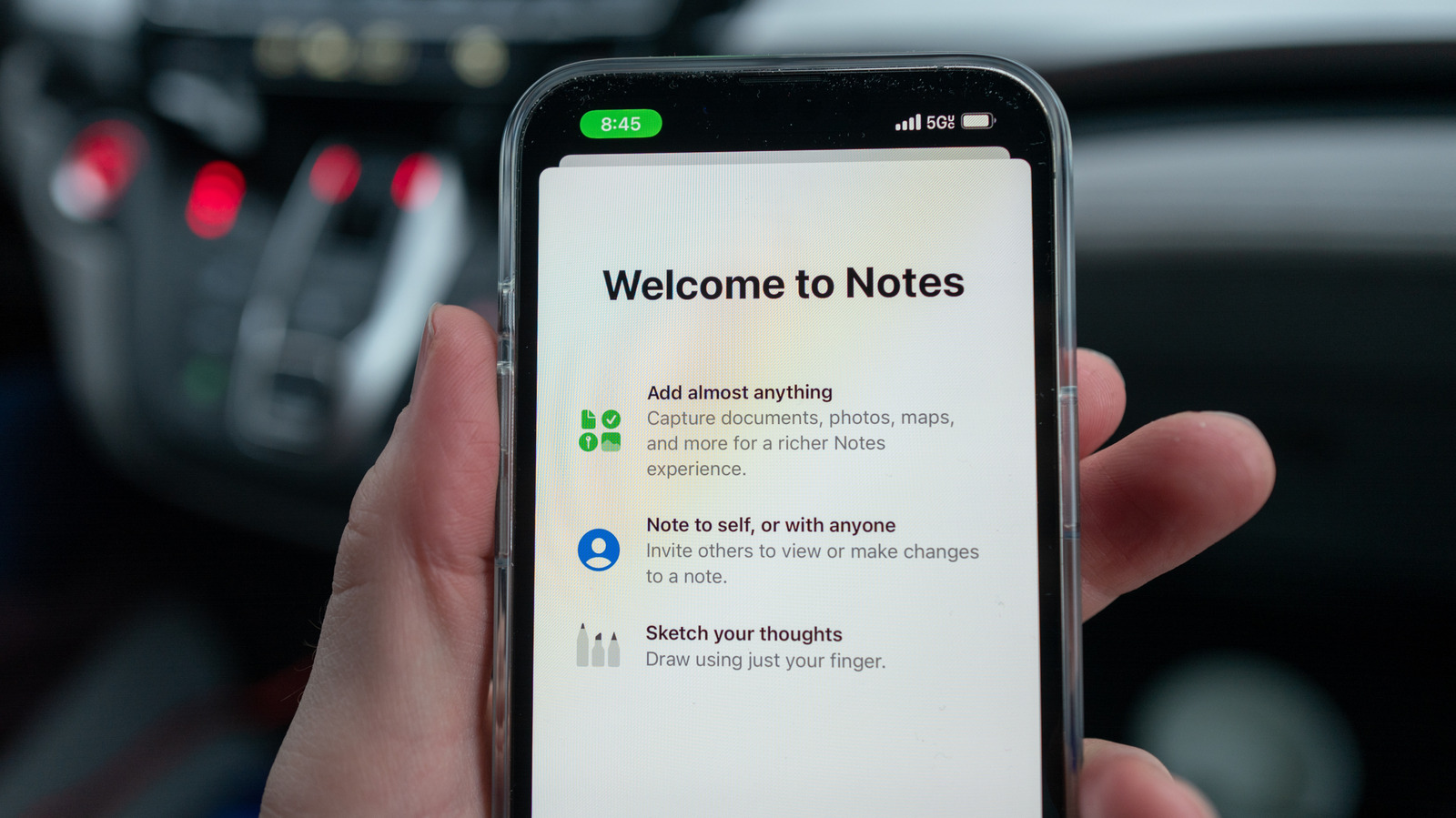
Apple Notes has a lot of tricks you might not have properly explored.
For most people, the Notes app is where grocery lists, stray thoughts and various codes go to live. If you've only used it for basic text, you've probably missed how Apple has added new features to the mix that can solve complex equations, draw graphs, transcribe audio and turn your doodles into images. iOS 27 brought even more, including smarter Siri integration and divider lines, so the app is more capable than ever.
A few of the features below rely on Apple Intelligence, requiring newer hardware to work as intended. On the iPhone, that means the iPhone 15 Pro, iPhone 15 Pro Max and any iPhone 16 model or later. Those features are flagged along the way, along with anything that requires a specific version of iOS.
The Notes app has a calculator hiding inside it, with the math happening while you're typing. Since iOS 18, when you type an equation and add an equals sign, Math Notes fills in the answer on the spot. It also works with variables, so if you write "dinner = $42" and change that value later, every result that uses it updates automatically. That makes it a surprisingly easy way to split the bill or plan a monthly budget.
Math Notes can do more than give you simple answers. After you type an equation that starts with "y =", tap the equals sign and choose Insert Graph to plot what you've typed right inside the note. If you change the variable, the graph changes automatically to match. It's a neat tool for students to check their homework without a dedicated graphing app.
If you don't have a physical scanner at home, there's no need to download a dedicated scanner app to replace it. Tapping the attachment button in any note shows the Scan Documents option, where Notes will capture a page automatically, including cropping and straightening it for you. The scanner also offers a flash option and image filters if needed.
In Auto mode, you don't even need to tap on the shutter button; the system captures the document once it detects the page's edges and you're holding your iPhone steady. You can scan multiple pages into a single document, which is useful for contracts, lease agreements or anything else that runs longer than a page.
If the document needs a signature, open the scan, tap Markup, then go to Add > Signature. Use a saved signature or draw a new one with your finger, then resize it and drag it into place. It's an easy way to sign and send a form without taking a printout of the pages. Scans are saved to the note as PDFs, which you can annotate.
Notes can double as a recorder: choose Record Audio in any note to record and transcribe everything your phone hears. The transcript is searchable, so you can jump into the relevant part of a long lecture instead of scrubbing through the entire session. On iPhone models with Apple Intelligence, Notes can summarize entire recorded lectures or meetings. Phone calls you record also land in Notes inside the Call Recordings folder with a transcript.
The iPhone already has a dedicated recording app in Voice Memos, so it's worth knowing when to use which. Notes is the better pick when the recording is part of something bigger. For a class or a meeting, for example, you can type your own notes, add photos of the whiteboard and keep the recording all in the same note. Everything stays together, so you won't have to switch between multiple apps when you're going through your notes at home. Meanwhile, Voice Memos makes more sense when the audio itself matters most, like an interview you plan to edit or share.