// ARS TECHNICA — HARDWARE & GADGET
One terminal command gave my forgotten Android device a desk job
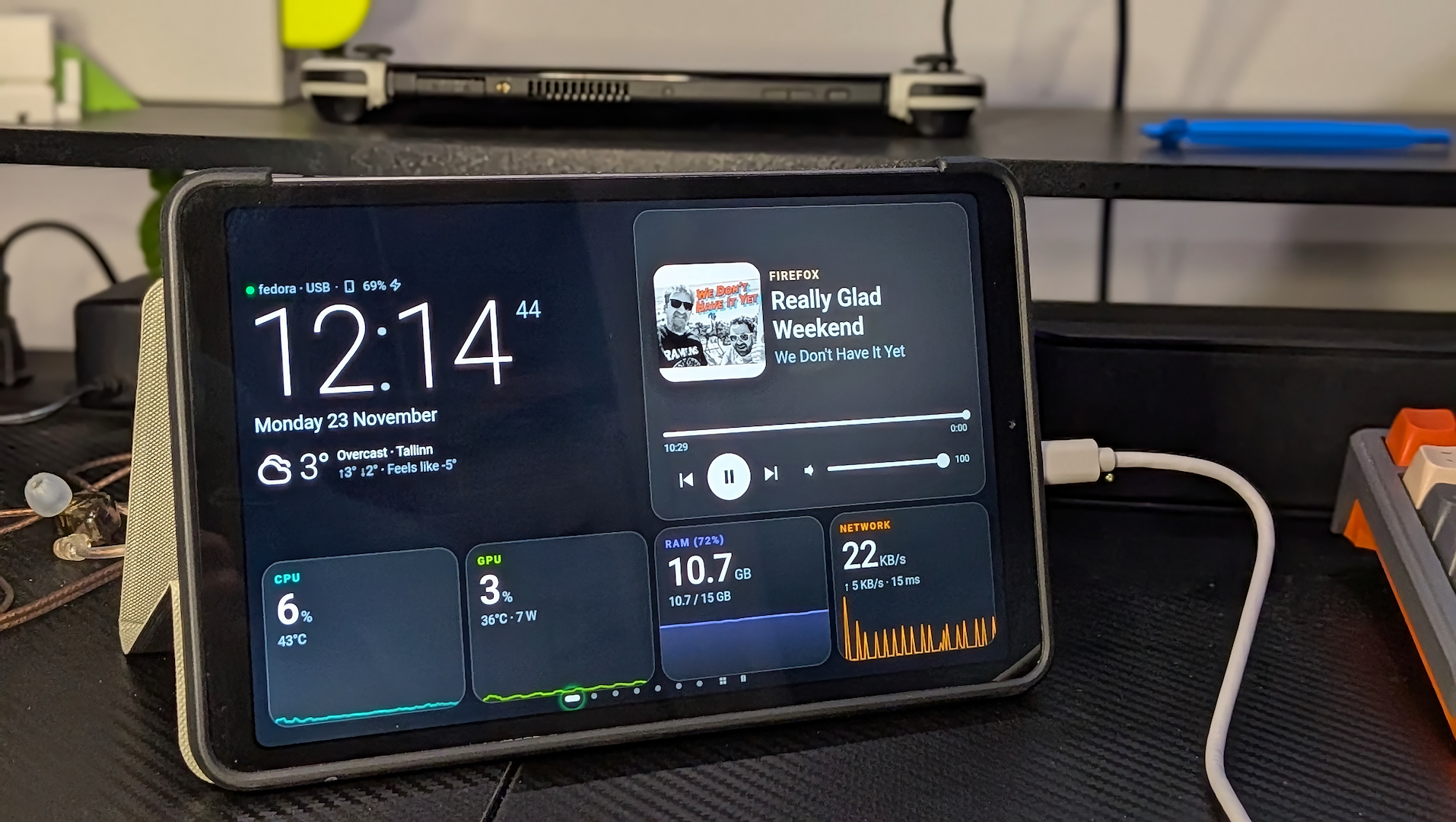
The free, open source PhoneBox dashboard puts old Android screens back to work.
My kitchen junk drawer used to hold takeout menus and coupons, but it has since become a storage spot for old tablets or phones. Like me, you probably have a few devices lying around that are perfectly functional but don’t meet your daily driving needs. It’s tucked out of view, living out its life in a drawer until being erased and donated after someone asks why you’re holding onto outdated, unused devices. Thankfully, PhoneBox has a solution. You weren’t hoarding old tech; you were waiting for the proper use.
I had an old AllDoCube iPlay 50 mini Pro 8.4-inch tablet that seemed like the perfect candidate. I bought the tablet second-hand as a possible big-screen gaming and emulation tablet to use with a telescopic control deck, but I quickly found I vastly preferred just using a dedicated device. Since that realization, this decent little unit has lived its life in “the drawer.”
Getting PhoneBox up and running on my tablet and PC couldn’t have been simpler. After making sure that the Android tablet was in developer mode, the process was as easy as plugging the tablet in to my PC via USB and executing a single copied command in my Linux terminal. The script downloaded the PhoneBox 0.9.29 software for my PC, verified the downloaded checksum against the release, and walked me through a few quick Y/N installation questions. The script offers to create a systemd user service, so the desktop agent launches after initial login, and even asks if you’d like it to install the PhoneBox APK to your connected Android device.
I already had developer mode initialized on the tablet but had to go back and allow ADB over USB in settings. The total installation time from copying the script from the project website to everything running on my PC and tablet was less than a minute. The app is MIT-licensed, works on Android 5.0 or later, and requires sideloading, since it is not available on the Google Play Store.
The installation script also prints its own uninstall script before it finishes. So often these days, getting rid of an unwanted app feels more difficult than installing it, so I appreciate the straightforward approach the developer has implemented.
The first time you fire up PhoneBox, you get live performance and diagnostic information from your PC, along with several pages of optional content that can be tweaked for your local setup to display information that’s pertinent to your uses.
Where PhoneBox really starts to shine is the widget catalog—a collection of free add-ons that can be added as pages to the tablet’s cycling page layouts. There are more general widgets, such as RSS feeds that display news highlights from your chosen sources, or simple displays like timers or world clocks.
I opted for a few different widgets that caught my eye. One let me view my library of installed Steam titles and launch them on my PC with a simple tap of the tablet screen. Another allows me to control smart home entities hosted by my Home Assistant server. I was controlling the lights in my office from my tablet within seconds of adding the widget. It’s brilliant.
Setting up additional widgets is as simple as adding them to the page layout from the PC’s web interface and hitting save. As soon as I updated things from the PC, the connected tablet immediately began reflecting the changes. I haven’t had the chance to test most of the 131 current options in the widget catalog, but the ones I did try were simple to modify and worked on the first try.