// ENGADGET — MOBILE & WEB
These settings can adjust your Samsung phone's display to your liking
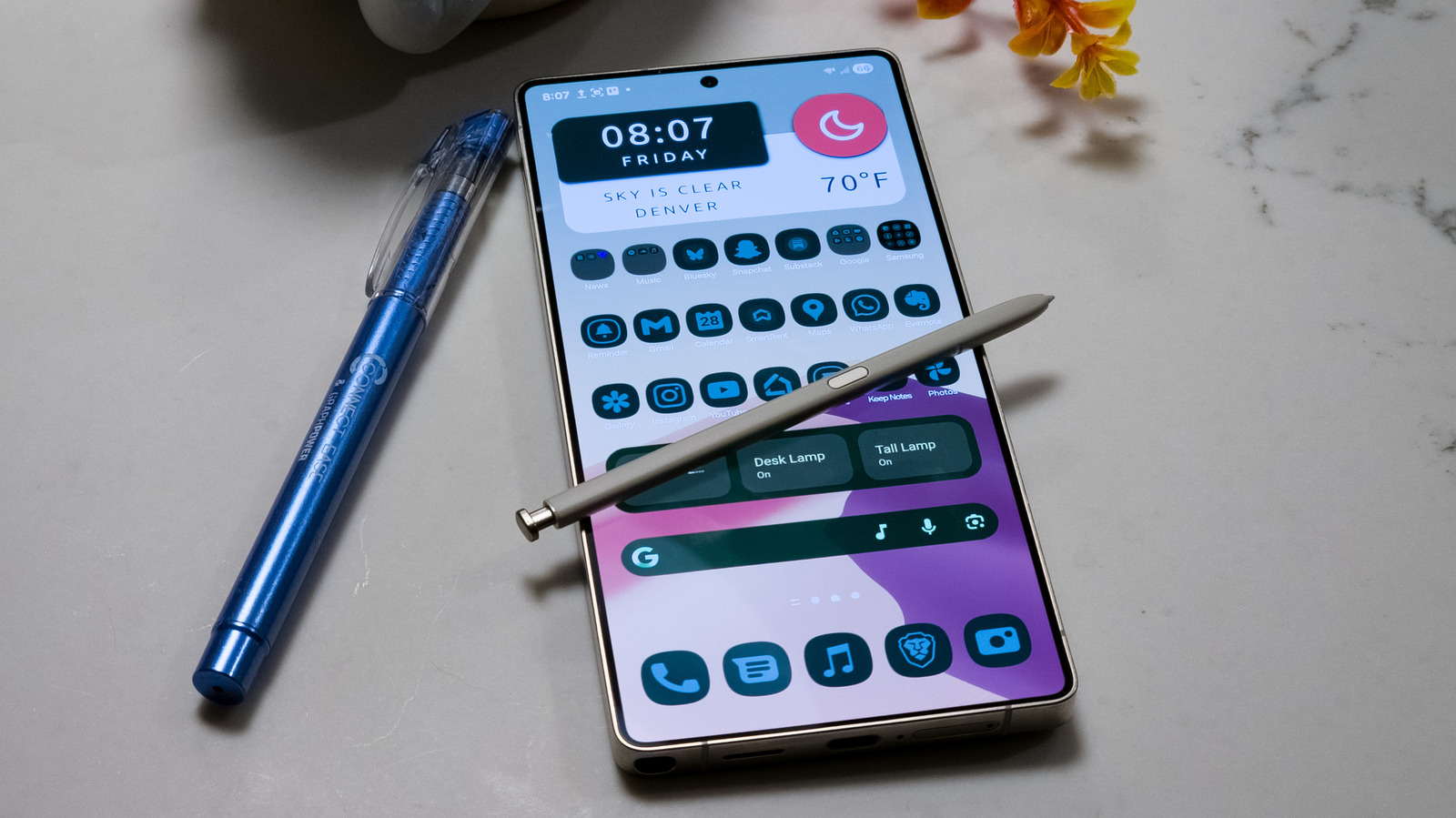
As one of the world's leading display manufacturers, even supplying screens to its biggest competitors, Samsung makes smartphones that are accordingly pixel-packed with display features. As in many other areas, Samsung lets users take the initiative to customize their smartphone displays, but it doesn't do a very good job of making sure you know those options exist.
Maybe you've found that your expensive Galaxy flagship seems to have a lower resolution than the spec sheet led you to believe, or that it seems a bit less responsive to your swipes than an iPhone 18 Pro. That's because your resolution and refresh rate are artificially capped by Samsung. Maybe your display isn't very bright. Maybe it's too bright. And have you ever wished you could leave the screen off without the whole phone going into sleep mode? Samsung has solutions for all of these and more baked into the past several versions of its One UI Android skin.
These features were tested on a Galaxy S23 Ultra, S25 Ultra and S26 Ultra running the latest One UI 9 software, along with both Galaxy Tab S9 and Tab S10 Ultra tablets running the previous One UI 8.5. Some features cannot be immediately confirmed to work on devices older than the Galaxy S23 Ultra but may still be available on some of them. Only one feature we covered, Super HDR, is unavailable on the S23 Ultra, since it was added with the S24 series and works at a hardware level.
If you own one of Samsung's higher-end Galaxy phones such as a Galaxy S26+, S26 Ultra or Fold Z 8, your phone comes out of the box set to 1080p but can actually go a lot higher. The same is true of the screen's refresh rate, which can reach 120Hz for smooth scrolling and gaming but arrives from the factory set to just half that. To remedy this, you can open Settings by swiping down from the top right corner of the display and then tapping the gear icon in that same corner. Select Display, then Motion smoothness and set the screen to Adaptive, then press Apply. Go back to Display settings, tap Screen resolution and select the rightmost option with the highest resolution your device offers, then tap Apply.
Both settings will consume extra battery, so be sure you're willing to make that trade-off beforehand if you care about improving your phone's battery life.
One more display setting worth tweaking in Display settings is Screen mode. This lets you choose how colors appear onscreen. Samsung defaults to Vivid mode, which cranks up sharpness and saturation, making content onscreen look more candy-coated and vibrant. However, this comes at the cost of accuracy. If you want a more true-to-life image, you should switch to Natural. If you prefer Vivid, you can customize things a bit further. With Vivid selected, newer Galaxy devices show a white balance slider that lets you make the image warmer (shifting toward reds and yellows) or cooler (shifting toward blues). You can also tap Advanced settings to find individual red, green and blue sliders for more granular cast compensation, as well as a Vividness slider that can crank the saturation even higher.
Modern OLED displays like those found in Samsung's flagship Galaxy phones and tablets are reaching increasing levels of brightness, but OLED struggles with brightness compared to other panel technologies. Meanwhile, in pitch-black conditions such as when you're reading in bed, even the dimmest brightness setting can be too much for some users (or might bother the person sleeping next to you). Samsung seems to understand this, and One UI includes both an extra bright and extra dim setting to compensate.
In direct sunlight, your Galaxy phone will flex past its normal top brightness level to make sure the screen remains visible, but this special sunlight mode otherwise stays dormant. You can enable it manually, however. First, you need to turn off automatic dimming by pulling down the Quick Panel from the top right corner of the display and holding down on the brightness slider to access br