// 9TO5MAC — MOBILE & WEB
macOS 27 gives you more control over Liquid Glass
9to5Mac is brought to you by CleanMyMac by MacPaw. With the release of macOS 27 Golden Gate, use CleanMyMac first to free up space, optimize your system, and ensure your new Mac runs at 100% on day one. Learn more.
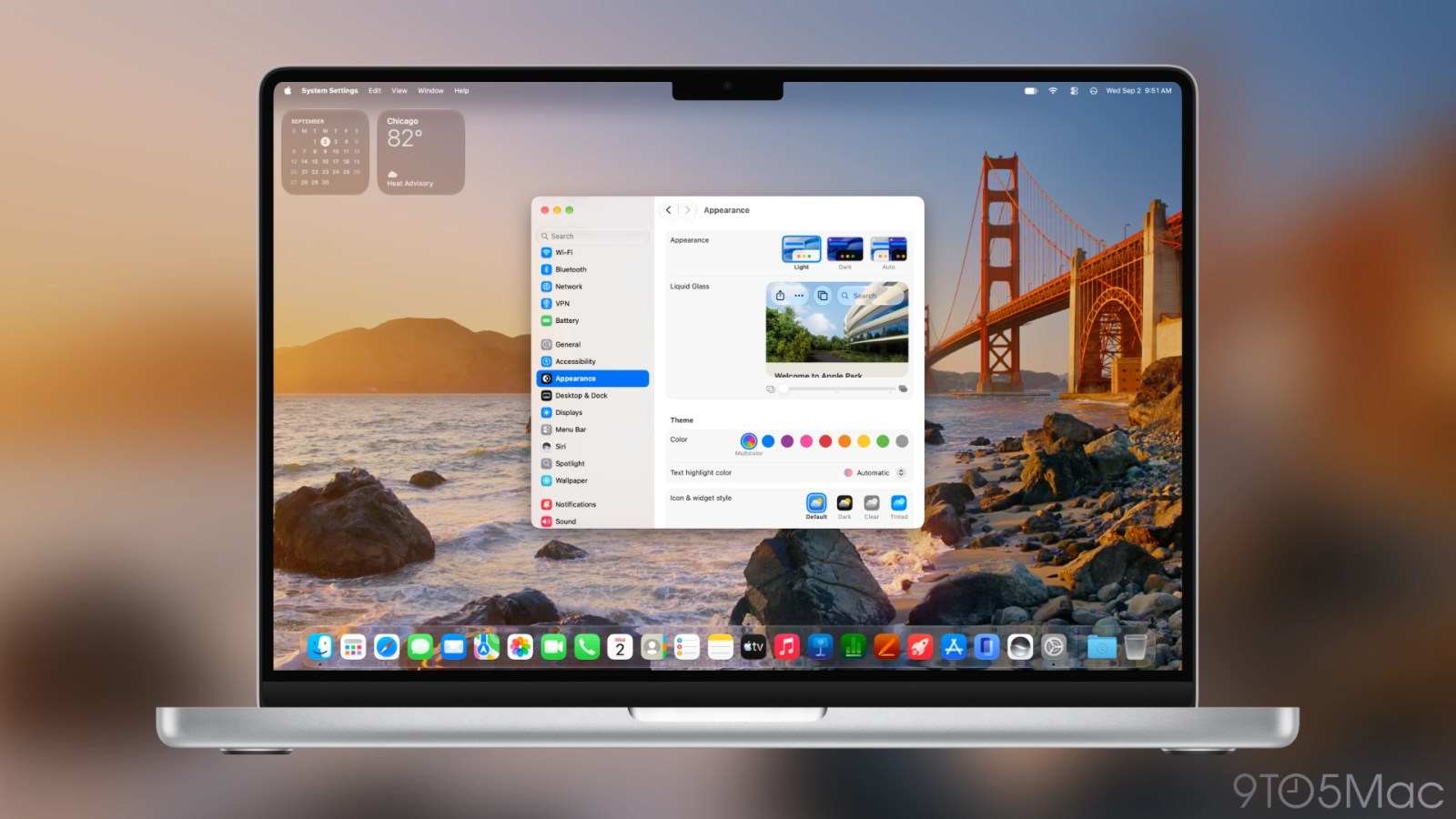
macOS 27 Golden Gate is a huge upgrade over macOS 26 Tahoe, and not just because of the smarter design decisions. Just like iOS 27 for iPhone, the Mac adds a Liquid Glass appearance slider. This lets you dramatically change the look of your Mac across the system.
Liquid Glass is Apple’s design language that started with iOS 26 and macOS 26 Tahoe. Initially, Liquid Glass started with a single look. Apple later added a setting to make Liquid Glass less clear.
Starting with iOS 27 and macOS 27 Golden Gate, Liquid Glass is no longer limited to just two styles. Instead, Apple has introduced an appearance slider. This lets you make Liquid Glass much more clear than before. You can also give Liquid Glass a more opaque look that still looks modern.
macOS 27 Golden Gate defaults to a medium setting. The system also invites you to adjust the slider during initial setup. You can also adjust the slider later in System Settings > Appearance.
The Liquid Glass slider provides a live preview of what to expect from each setting. Three notches suggest most clear, medium, and most opaque. However, you can assign it to any level in between notches as well.
The Dock is the most prominent component that changes appearance based on the Liquid Glass slider setting.
It can range from showing your desktop wallpaper in clear definition to being a more opaque and defined material.
macOS desktop widgets can be full color, dim, or change automatically. The Liquid Glass slider changes how the dim widget appearance looks as well.
Apps like Apple Music and Podcasts that have system Now Playing bars have a very different look based on the Liquid Glass slider position.