// ENGADGET — MOBILE & WEB
Why your Spotify might be using so much storage
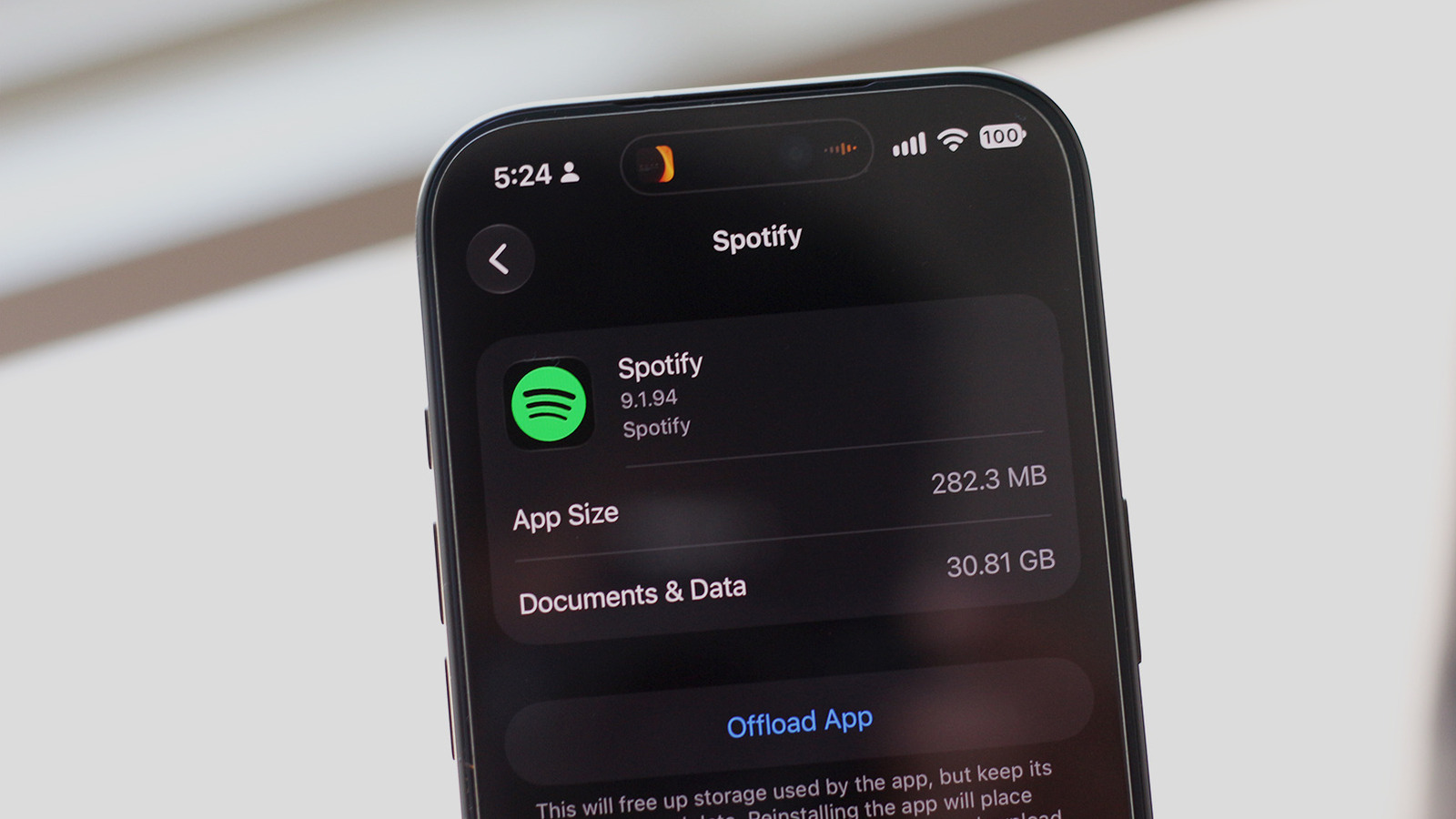
If you're running low on storage, it's worth checking to see if Spotify might be the culprit.
We're all getting tired of subscription-based services, but when it comes to music streaming, it's a little harder to give up. You can still purchase individual tracks and albums, but it's often more economical to subscribe to Apple Music or Spotify if you listen to a wide variety of music. Furthermore, with how fast and reliable mobile data has become, you can stream virtually any song you want on the go. This saves you the hassle of managing a local library of music on your phone, not to mention the storage space you could otherwise use for other apps and media files.
If you've recently been hit by the low-storage warning on your phone, you can find out exactly what's taking up so much space. On iOS, navigate to Settings > General > iPhone Storage. If you're using Android, the exact menu labels may vary depending on your phone's manufacturer, and the easiest way to find this information may be to simply search your phone for "Storage." For Samsung, look under Settings > Device care > Storage. For other Android devices, you can usually locate it under Settings > Storage or Settings > About Phone > Storage. Your phone might automatically sort your apps by how much storage they're occupying. If you spot Spotify near the top, there's a good chance that downloaded music or cached data is what's eating away at your phone's storage.
Android lets you clear an app's cache in just a few taps. Navigate to something like Settings > Apps > See all apps > Spotify > Storage & cache and tap on Clear cache. Though you can nuke your entire offline music library by tapping on the Clear storage button, this will also sign you out of the app. Instead, the Spotify app offers a much better way to manage your downloads.
In the Spotify app on Android and iOS, you can check what music you have downloaded by navigating to the Your Library tab and tapping on Downloaded at the top. Here, you can pick individual playlists or albums and tap on the green download button to remove them from your device. This is a good way to free up storage by deleting the songs you don't want available offline, while keeping the stuff you do listen to more frequently.
You can, however, delete all downloads if you want to reclaim as much storage on your phone as possible. In the Spotify app, tap on your profile picture in the top-left corner of the screen. Navigate to Settings and privacy > Data-saving and offline, scroll all the way down and tap on Remove next to the Remove all downloads option. You can also clear Spotify's cache here.
You might need to restart your phone if you don't immediately see the freed-up storage reflected in your phone's settings. Other streaming services like Apple Music and Netflix also let you remove downloads — you just have to look for the option within the app's settings.
If you're using the Spotify app on a Windows or macOS computer, you can clear downloads by clicking on your profile picture, navigating to Settings, scrolling all the way down to the Storage section and clicking on Remove all downloads. Those who use Spotify on the web shouldn't have to worry about downloads taking up device storage, since the browser version doesn't support offline listening to begin with.
If you do need an offline music library so you can listen to your tracks without an internet connection, you can still clear some storage space by adjusting the quality of your downloaded songs. On Android and iOS, launch Spotify and head to Settings and privacy > Media quality and scroll to the Download quality section. You can choose the Low option, then tap on the Download button next to the Update existing downloads option. Spotify says tracks downloaded or streamed in the Low quality setting are equivalent to around 24 kbps, which shouldn't be too bad for casual listening.
It's also worth noting that if you have the Lossless quality preset selected for your downloa