// ENGADGET — HARDWARE & GADGET
The reason why some USB ports are black
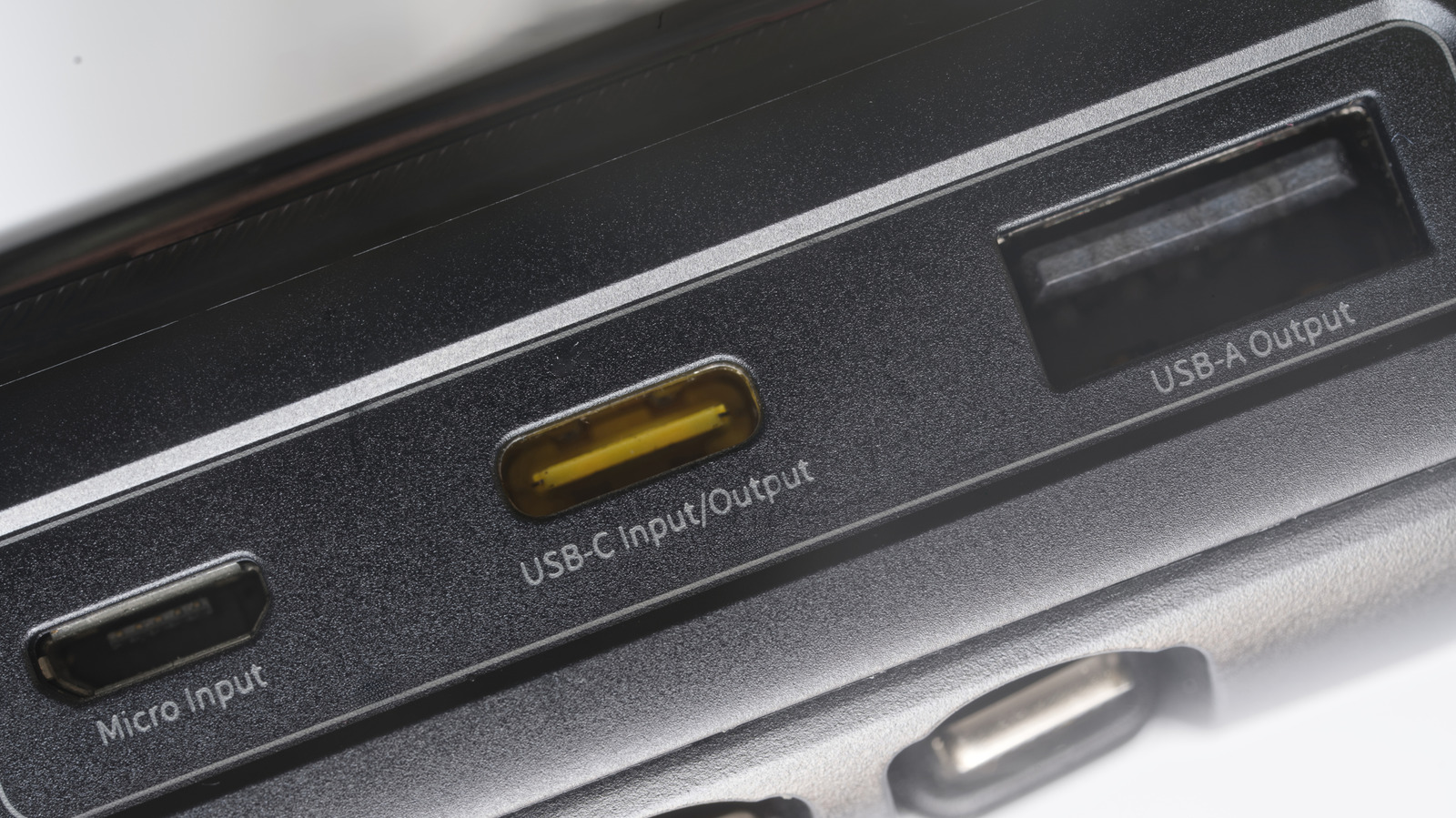
As with most USB colors, it indicates the port’s capabilities. At least it should.
In most cases (not all), a black USB port denotes a USB 2.0 connection, also known as Hi-Speed USB, which supports data transfer rates up to 480 Mbps. However, as our previous articles on orange and purple USB ports noted, this is not an industry standard. It's a common convention, sure, but a black USB 2.0 port on one PC doesn't mean another PC's black USB port is also USB 2.0.
The best way to know for certain is to check the markings beside the port and the manufacturer's documentation. Oftentimes, digging through the manual is the only way, because symbols, icons or letters may not be enough to positively identify a port. Some may not even have any labels at all.
Note that USB-A port colors and their meanings do not transfer over to USB-C. In fact, most USB-C ports don't have any colors at all. If one does, it's likely cosmetic. USB-C ports have a much wider range of capabilities, and color-coding them would likely get confusing.
If you've confirmed that a particular USB-A port is USB 2.0, you're good to use it for everyday accessories. Think basic flash drives, keyboards and mice, wired game controllers, mics, headsets and other similar devices. You generally don't want to waste a much faster port on these accessories.
Where USB 2.0 ports fall short is with more demanding peripherals. An external HDD or SSD is a prime example. Copying large video files or backing up a drive can be agonizingly slow over USB 2.0 due to limited transfer rates; don't let the "Hi-Speed" label fool you. USB 2.0 may also have power limitations that prevent certain drives from working properly. Seagate, for example, states that a drive like the Wireless Plus 2TB may not be detected on certain USB 2.0 connections if they supply insufficient voltage.
That said, many USB 3.0 devices will likely work fine when connected to a USB 2.0 port, though the device will be limited to USB 2.0's maximum throughput. The reverse works as well. A USB 2.0 accessory can connect to a USB 3.0 port, but the accessory won't perform any better than it normally would. Thus, you should match the port to the device: Use USB 2.0 ports for low-speed, low-power devices and reserve your faster or "Always On" ports for ones that will benefit.
According to convention, black USB ports are faster. White ones are typically USB 1.x, which maxes out at 1.5 Mbps in low-speed mode and 12 Mbps at full speed. The USB 2.0 "Hi-Speed" protocol that black USB ports support tops out at 480 Mbps, making them 40 times faster.
All this still boils down to the manufacturer's choice, of course. Most USB port colors you'll encounter will match the standard capabilities listed online, but not all. Some PCs and motherboards will use the same color for all their USB ports, even though they will support different protocols. Without any set-in-stone standards, manufacturers can use whatever colors they desire and label them accordingly, or not at all. Fortunately, most stick to the common ones.
If you're not sure, it's best to go to the source. Pull out that boring manual or check the manufacturer's website. Black and white USB ports (or those with other colors) shouldn't have the same capabilities, but "shouldn't" is not a guarantee.