// ENGADGET — HARDWARE & GADGET
5 Nintendo Switch 2 features everyone should know about
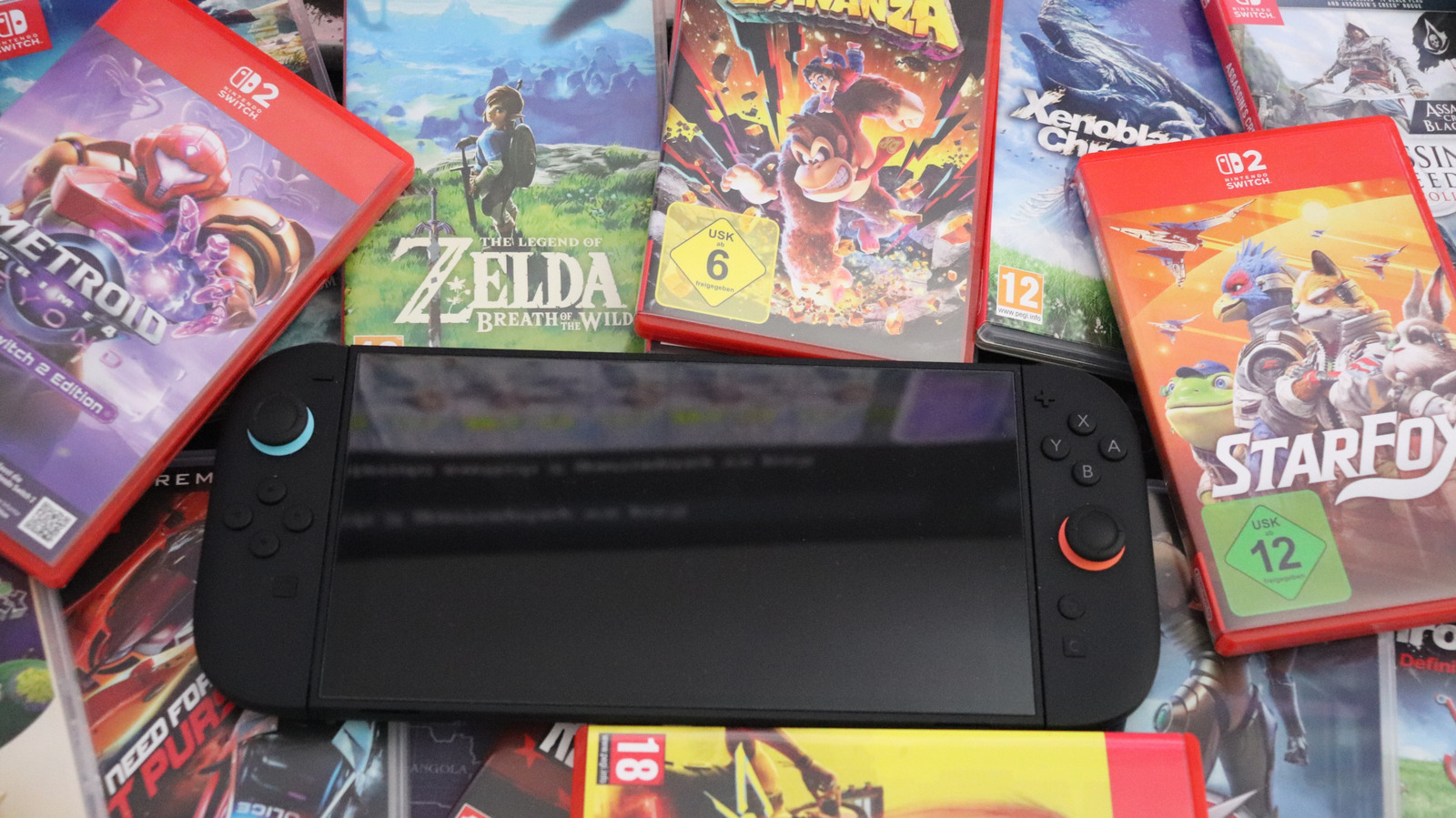
The Switch 2 has lots of little tricks to discover: some inherited from the original Switch and some new.
Chances are that you aren't taking full advantage of everything your Nintendo Switch 2 can do. It's easy to jump right into games and ignore the various settings that help your system run at its best.
The Switch 2 is a pretty direct upgrade to the original Switch — its design, OS, controllers and other aspects are refinements rather than something entirely new. That means many of the Switch 1's tips and tricks work on the newer console too, so if you're a Switch veteran you might already know where to look. But there are other easy-to-miss improvements to find, and they're unique to the newer system.
Whether it's making controls more comfortable or repurposing hardware you already have, you should know about the Switch 2's neat little features. For instance, you might have overlooked the option to share games with friends, which can save you all money. Try these features out before you jump into a game on your next session.
The Joy-Con 2 controllers are larger than the original models but still small enough to sink between the couch cushions or lose sight of underneath a blanket. Next time you can't find your controllers, your console can help. Open the Controllers page from the main menu, then hit Search for Controllers.
All compatible controllers you've paired to the system will appear; to find one, highlight it and hold L or R (or press the touchscreen). While you're holding the button, the controller will vibrate and play a sound, helping you track it down. If you can't find one, try walking around with the console to get back in range of it.
There are a few caveats here. While you can pair original Switch controllers with a Switch 2, this feature can't locate them. Third-party Switch controllers may or may not work. You can't ping a dead controller with this, and it won't find a controller that's paired with another console.
Most laptops, phones and similar devices now include a feature to cap their charging at 80 percent (or similar values). This is designed to protect the health of the device's battery over several years, since keeping lithium-ion batteries at 100 percent for extended periods wears them faster than lower percentages.
Your Switch 2 can also do this: open Settings and scroll to System. About halfway down, you'll see a toggle titled Stop Charging Around 80-90%. Turn this on, and your system will limit itself when it's on the dock or otherwise charging. If you're headed on a long trip, feel free to shut this off first to fully juice up. But in general, especially if your Switch 2 sits on the dock most of the time, this is worth having on.
Speaking of charging, the System Battery (%) option next to this is appreciated, too. It will show the exact battery level instead of a general symbol.