// ENGADGET — MOBILE & WEB
Gmail users should know about this little-noticed feature
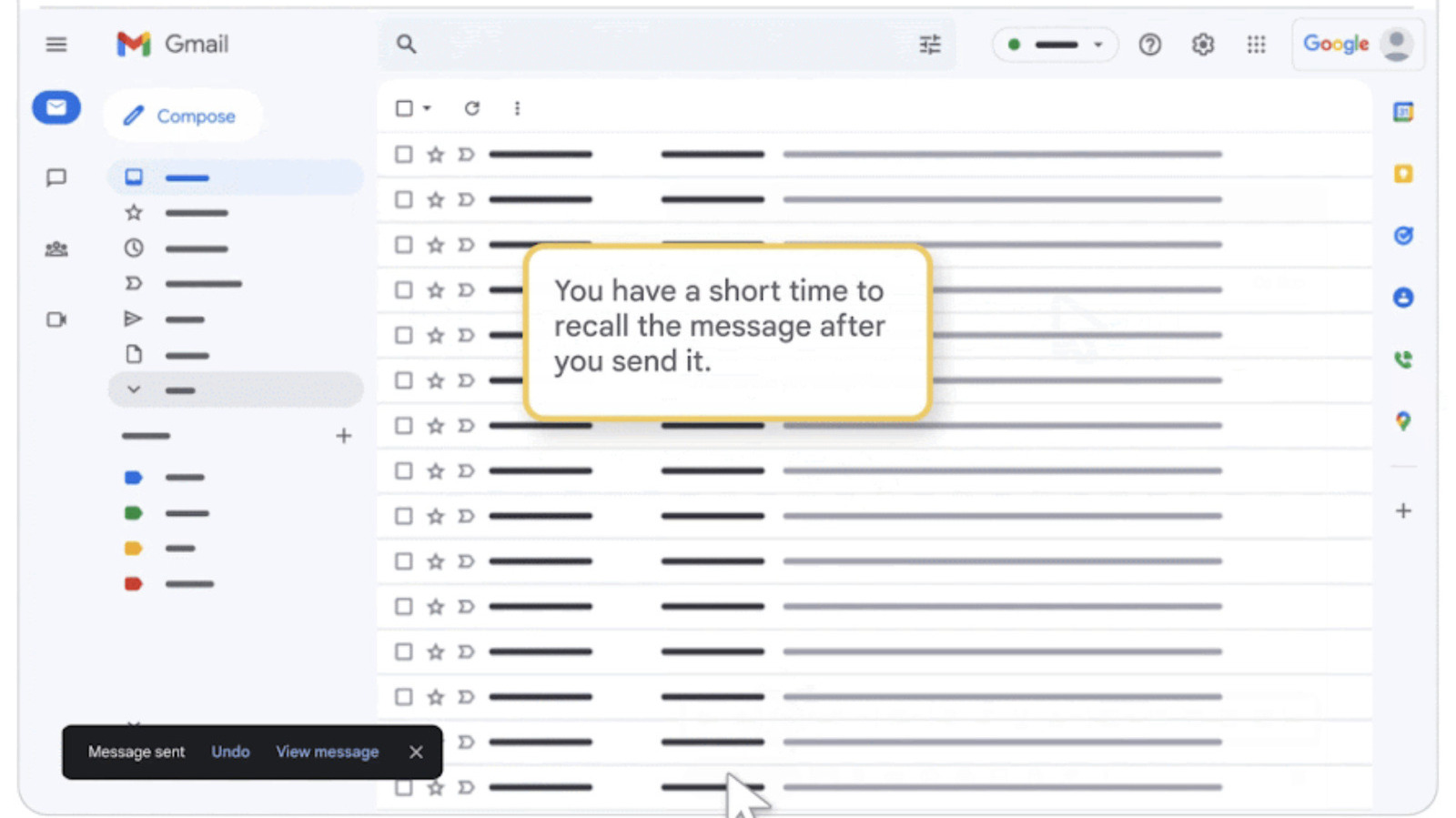
You can unsend messages on Gmail, but you only have seconds to act.
Whenever you hit Send on Gmail, a small box pops up in the bottom left corner of your screen that will let you undo the action before it's too late. It says Message sent along with the options Undo and View message. If you've suddenly spotted a typo or remembered a piece of information that you forgot to include in your original message, the "unsend" feature could be your best of friend. However, it only shows up for a very short of amount of time, and you have to hit Undo very, very quickly.
To be clear, the feature doesn't literally "unsend" an email that has already been sent. Once it's out there, you can't claw it back from your recipient's inbox, even if it hasn't been opened yet. What it does is delay the service from dispatching your email to give you the chance to stop it from going through. That is why you're only given a short amount of time to decide. Since it only delays your email from being sent, your intended recipient doesn't get notified about it and will not know that you've unsent an email. Take note that hitting View message before the waiting time ends also means you're ending your chance early to unsend your email.
The good news is that you can lengthen the amount of time you have to hit Undo, so you can give your messages a quick final read before Gmail pushes them through. You'll have to manage your expectations, though: Even if you choose the longest amount of time available, it's still pretty short. And no, you still can't take back emails that have already landed in your recipient's inbox.
To choose and extend the amount of time you have to unsend a message, go to Gmail on desktop and click or tap on the Gear icon at the top right corner of the screen. In the Quick settings panel, choose See all settings. In the General settings page, scroll down until you see the Undo Send section, where you'll find the option to change your cancellation period.
It will be set to the feature's default of five seconds, but you can change it to 10, 20 or 30 seconds. That half-a-minute period is the longest you can delay your email's dispatch, but it could be long enough to prevent disaster when sending out especially important messages. Don't forget to hit Save changes at the bottom of the General settings page for the new cancellation period to take effect.