// 9TO5GOOGLE — MOBILE & WEB
Camera Looks on the Pixel 11 delivers what I’ve wanted from Google’s photos for years
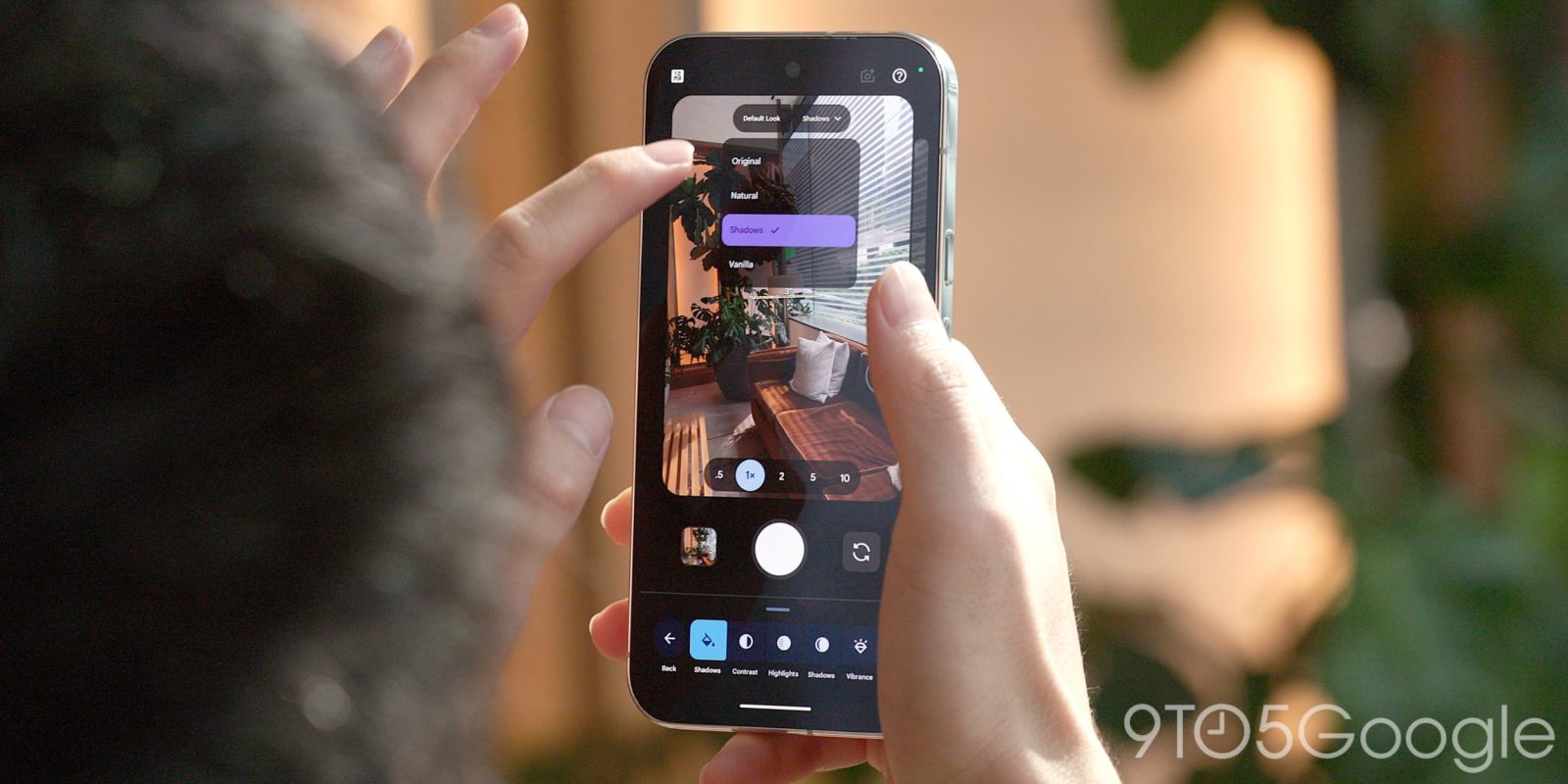
The Pixel 11 lineup has earned its reputation as a safe upgrade — or boring, if you’re looking to be a little less generous to Google — but it’s delivering one thing I’ve been begging for literal years: Camera Looks. Google’s take on the iPhone’s Photographic Styles have been a long time coming, and appear to be set to play a big role in shaking up the conversation around the Pixel’s evenly-lit, HDR-heavy processing. I’ve been experimenting with them while working towards my eventual Pixel 11 Pro XL review, and I have to say, I’m mostly satisfied. Mostly.
Camera Looks is, at long last, an acknowledgement that Google’s photo “optimizations” have gone too far since Marc Levoy left Google for Adobe in 2020. While I’m not trying to make it sound as though one single person was why the Pixel’s camera system was so universally beloved in its pre-Tensor era, the philosophy around Levoy’s approach to computational photography — something he’s now experimenting on with an iOS-only app at Adobe — certainly feels from a bygone era. While photos captured on the Pixel 8, or 9, or 10 certainly look good by its textbook definition, they’re also lacking the personality and character found on devices like, for example, my beloved OnePlus 13 from a couple of years ago.
And so, with a growing chorus of voices tired of Google’s ultra-clean processing that reduces contrast, saturation, and all of the other elements that can make a photograph really stand out from the crowd, Camera Looks arrives. It’s a Pixel 11 exclusive, a decision I think is borderline insulting to the company’s fans. While these settings really do change the underlying processing applied to a final shot — rather than, say, applying a simple filter prior to tapping the shutter button — I certainly don’t see enough of a performance gap between the last few generations of Tensor that would require this tool be kept for Google’s latest, most expensive lineup yet.
But I digress. The long and winding road that brought us here might be filled with bad decisions, but now that we’ve seemingly arrived at a proper solution, how does it actually perform? That’s a surprisingly difficult question to answer, believe it or not; it all comes down to your own personal taste, your level of patience and experimentation, and whether Google can make a couple of changes to improve the overall user experience. But so far, I’m pretty happy.
Let’s start right away with some examples, before I explain why making a final judgement call on the strength of Camera Looks is so difficult. For this review period, I’ve been capturing shots in all four “default” styles, along with one example each for the additional looks that need to be reapplied every time you open the camera app.
For every gallery in this article, I’ve kept these styles in the order as they appear below, unless otherwise labeled.
If, like me, you end up finding that not one of these meets your Goldilocks qualifications, you can tweak them further to your heart’s content. Camera Looks is annoyingly buried — tap on the lower-right button in the viewfinder to open pro-level settings, then tap the Looks button in the lower-left corner — but once you’re in this menu, there’s plenty to do. Each of these default styles supports adjustments to their overall contrast, highlights, shadows, vibrance, tint, warmth, sharpness, and grain. They can all be reset at any time, either individually or with a single tap at the end of this list. Again, this can take some time and patience, but if you’re willing to put the work in, you can basically make the Pixel 11’s camera feel exactly how you want it to feel.
If that’s all Camera Looks was, it’d be good enough to satisfy. Even if the four base options in their default states don’t immediately win me over, there’s plenty of flexibility to be found. But Google didn’t stop at four; there are six more additional presets that might look more familiar to Snapseed users. Editorial, Velvet, Classic, Digi, Black T