// 9TO5MAC — MOBILE & WEB
Your HomePod has a colorful new party trick: how to enable Sound Glow
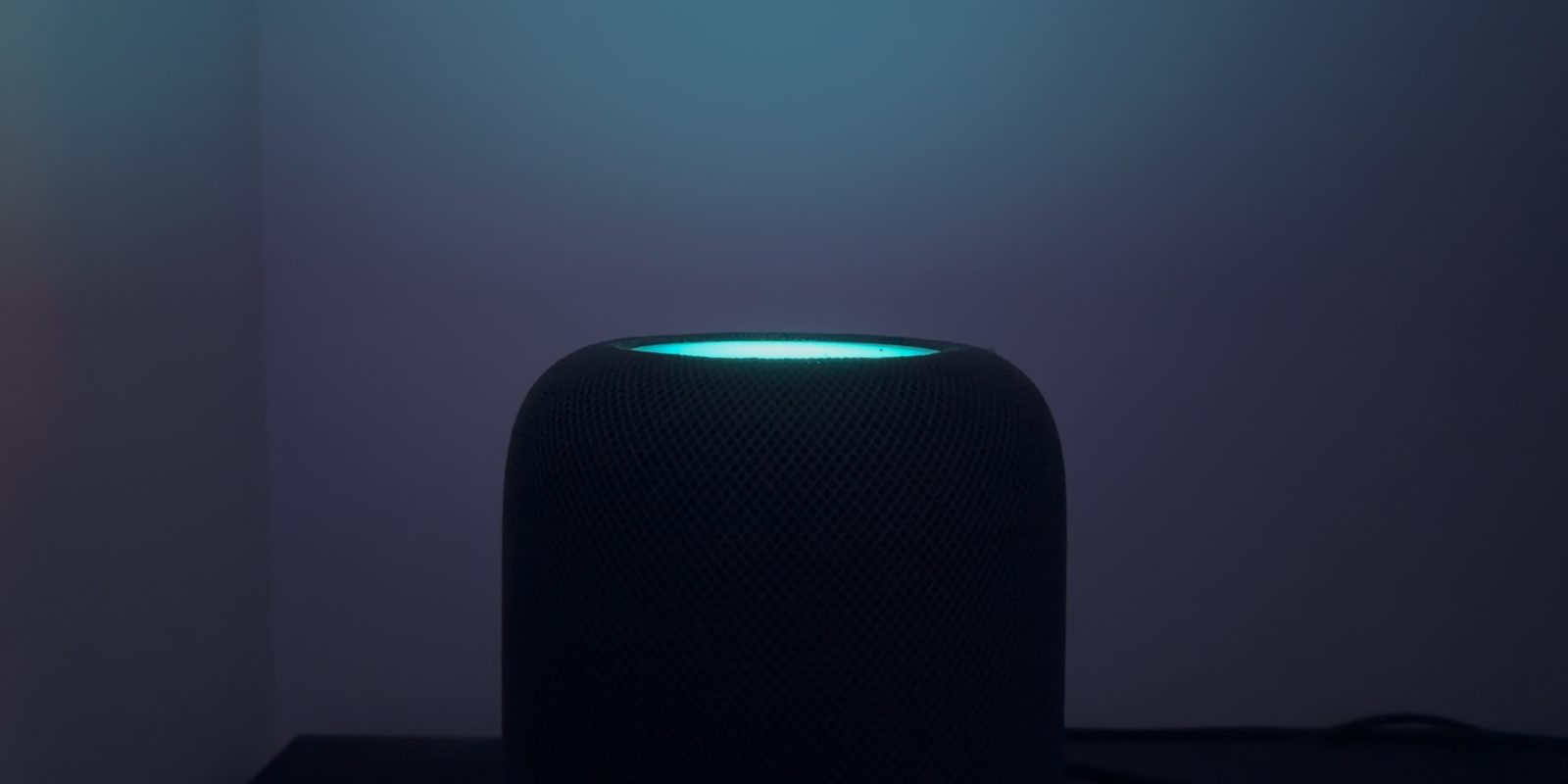
Apple is rolling out a new feature for HomePod mini and the second-gen big HomePod called Sound Glow. This lights up the touch surface of your speaker with colors that reference the album artwork of the currently playing song, perhaps adding some additional ambience to a party vibe.
Sound Glow is supported by HomePod mini and HomePod mini 2, and the second-generation HomePod. The original 2018 HomePod is not supported.
Sound Glow shows animated ambient light effects based on what’s playing, so you have to be playing music or a podcast with album artwork for it to work. In practice, you see two or three dominant colors from the artwork appear on the illuminated surface. The balls of color bounce around to give a bit of motion.
The output brightness of a HomePod ‘screen’ is not that bright, but if you have the HomePod against a white wall, you can get some visible color cast in a dark room, even if you can’t see the top of the HomePod itself.
To enable Sound Glow, make sure to update to the latest software version 27.2 (currently in release candidate beta). Then, open the Home app, long-press on your HomePod and scroll down to the settings. There will be a new toggle for Sound Glow. Just enable it to activate and start playing music to see it in action.
You can also enable Sound Glow from the Control Center on an Apple TV, when paired to HomePods. Long-press on the Apple TV remote, scroll across to select the HomePod menu item, and then click to enable or disable Sound Glow. It’s quite handy that it is easily accessible here as that means you can quickly turn it on if you are hosting a party, and easily turn it off for the rest of the year when it might be too distracting.
FTC: We use income earning auto affiliate links. More.