// ENGADGET — HARDWARE & GADGET
5 Samsung One UI features you won't get with other Android phones
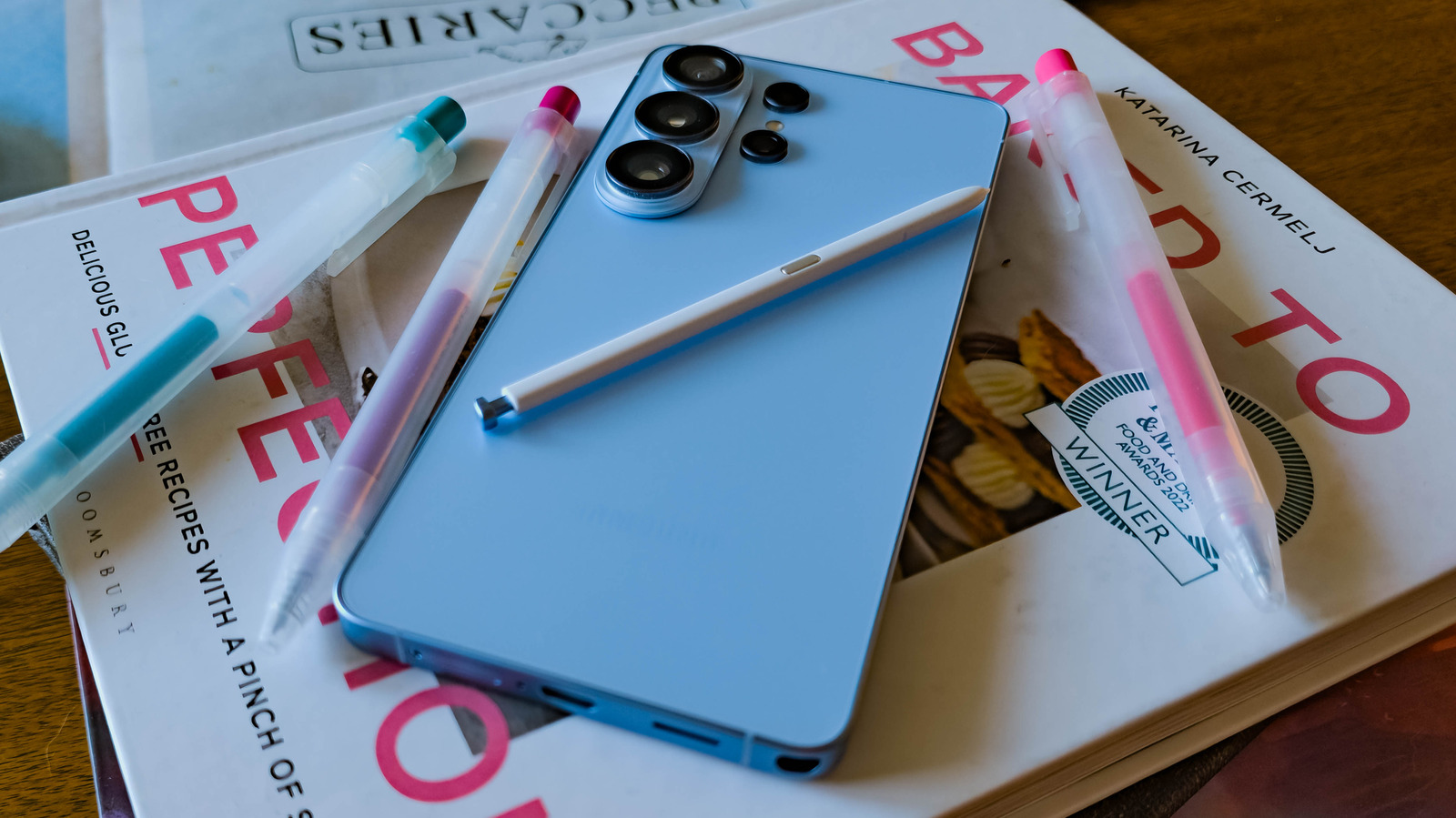
From deep customization to seamless multi-device computing, there's a lot that makes One UI stand out from other Android variants.
Samsung's Galaxy smartphones are the world's most popular Android smartphones, which means that a huge chunk of Android users' experience of the OS is through Samsung's One UI software. But that's not a bad thing: One UI has a slew of unique features you can't get elsewhere, and once you find the most useful features for you, it can be hard to switch to another brand.
Some of Samsung's exclusive features in One UI 9, the most recent version of its skin built on Android 17, can help you use your devices together more easily. Others protect your phone against security threats and advanced malware. But some of the most charming features involve audio. As the owner of brands like Harmon Kardon, Denon, and JBL, Samsung is a major player in the audio space, and its Android skin reflects that with features that let you share and control your music more easily.
All of these features were tested on devices running this year's feature-rich One UI 9 and One UI 8.5, but not every Samsung phone will update to that software. But don't fret: all of these features are also available on One UI 8, which some older devices support.
Switching between multiple Galaxy devices — or a Galaxy device and a Windows PC — can be cumbersome. That's where Multi Control comes in, allowing you to connect a mouse and keyboard to one device and use them on the others. Multi Control lets you move your inputs between any combination of Galaxy devices and a Windows PC and use them to control the native Android interface. You can also type in text boxes on all connected devices and even drag files between them.
Other manufacturers have similar features — Lenovo as part of Motorola Smart Connect and Oppo/OnePlus within the O+ Connect suite — but the crucial difference is that those features require a PC to sit in the middle of the connection. Only Multi Control lets you share a mouse and keyboard between a phone and tablet without a PC in the mix. As someone who uses a Samsung Galaxy Tab S10 Ultra as my primary "laptop," this means I can pop my phone on a kickstand, fold out my tablet's keyboard case, and use the keyboard and trackpad to control both devices. It essentially turns my phone into a miniature second monitor, perfect as an always-on Spotify window or a dedicated screen for a calendar or to-do list.
Until recently, Multi Control on PC was locked to Samsung computers such as Galaxy Books. However, as of this writing, Samsung has opened the functionality up to work with any PC. As I write this, my tablet sits alongside my PC monitors, happily accepting the PC's cursor on its screen. My phone sits below the tablet, and I can move my cursor between them seamlessly.
Have you ever been in charge of the music on a road trip or at a party and accidentally blasted the beginning of a TikTok or Instagram video over the Bluetooth speaker? If so, Samsung has a feature that will prevent those embarrassing moments.
Android generally wants to play from just one audio source at a time and only to a single output. Playing a video pauses your music, for example, and both will play via the same pair of earbuds. Samsung's Separate App Sound lets you tweak that behavior. You can route apps to specific outputs, so TikTok and Instagram can be set to play through the phone's built-in speaker, even when you're connected to your car's Bluetooth, preventing that road trip faux pas.
To configure Separate App Sound, open Settings > Sounds and vibration > Separate app sound. You will be prompted to pick an app and select an accompanying output device. To go a step further, you can download Good Lock from the Galaxy Store and install the Sound Assistant module. Inside Sound Assistant, you will find the Multi sound setting, which lets you choose which apps can play audio at the same time as other apps. Alternatively, select the "All apps" option to