// HACKER NEWS — CYBERSECURITY
WhatCable: Know what your USB-C cable can do
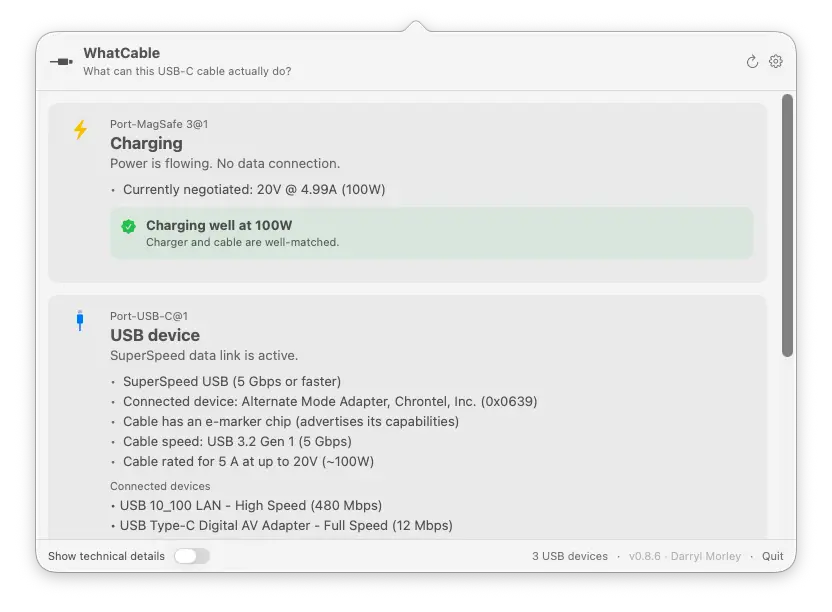
See what the charger offers, what the cable supports, and whether the Mac is drawing all the power it needs. WhatCable explains the result instead of leaving you to swap components at random.
Read the cable's e-marker identity, advertised speed, power rating and active transports. Turn on technical details when you need the underlying values from macOS.
See whether the cable, charger, or Mac is limiting the current charge rate, with the negotiated power profile highlighted.
If a cable develops trouble while it is plugged in (an overcurrent or the connection dropping and reconnecting), a banner appears on the port. Catches faults that only show up under load.
A plain-English verdict on what is limiting the link: the Mac port, the cable, or the device, so you know whether a faster cable would actually help.
When a monitor is connected, see whether the link is carrying its full resolution and refresh, or falling short, and whether an adapter, the cable, or the selected mode is the limit.
Decode cable speed, current rating, vendor identity, and USB PD capability flags from marked USB-C cables, including USB-IF certification read straight off the cable.
Identify USB 2, USB 3, USB4, Thunderbolt, and DisplayPort paths under the physical port where they are connected.
Option-click or enable raw details to reveal the underlying IOKit properties when you need the registry-level facts.
Every device sits inside the thing it is actually plugged into, not a flat pile. Hubs are hidden by default, and each device says how many it is sitting behind.