// 9TO5GOOGLE — MOBILE & WEB
Googlebook OS review: A post-smartphone PC, if Google can keep it
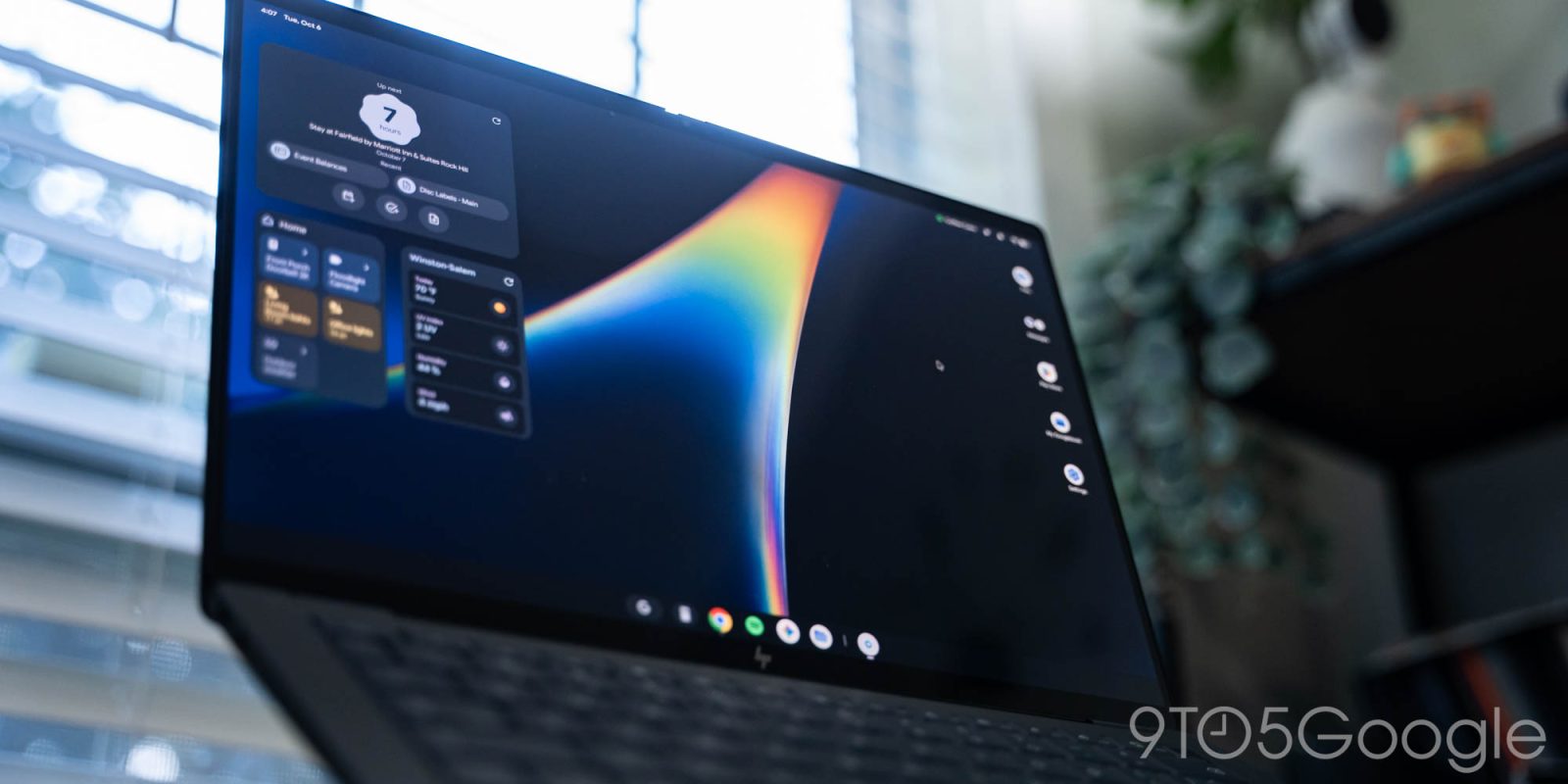
All attempts to bring the lessons and benefits of the touch era to PCs have failed, from Windows 8 to the era after the iPad when the Mac gained fullscreen apps. From an experience perspective, the iPad came closest because it was built on iOS, but it still failed due to the locked-down limitations at its core.
After using Googlebook OS for over a week, I think Google has the beginnings of a desktop OS for the Android smartphone generation, but the inherent strategy reset makes for a rough first take.
Googlebook OS looks like ChromeOS on the surface but feels like Android. However, it is more optimized than any large-screen iteration of Android to date, including foldables and especially tablets. This is infinitely better than other desktop Android experiences, especially plugging your Pixel into an external display.
There is a level of nativeness here that I always thought was missing from Chromebooks. ChromeOS from the very start felt like an extension of the web and never outgrew that in my opinion. Googlebook OS does not have that issue.
As a Pixel user, I quickly adjusted to the Googlebook UI and UX, with the only real learning curve being keyboard shortcuts. I think that will be true for any proficient user of Android smartphones, and that immediate familiarity could be very appealing for both the average and more advanced users.
In the top-right corner, you’ll find familiar Android status icons. A tap opens Quick Settings that are identical to the Pixel experience save for a volume slider. The bell icon opens notifications with access to notification history in the bottom-left corner.
A shortcut that activates Magic Pointer is next, useful if you don’t want to enable the “cursor wiggle” gesture. There’s also a Live Update for any currently playing media. This tiny pill shows the responsible app and track name. Hovering over the icon lets you quickly play/pause and a tap brings up full media controls, which are also available in the notification shade. On other desktop OSes, pausing media always requires two clicks, with Googlebook’s implementation a really nice touch that takes advantage of having a cursor.
The top-left corner is home to time, day, and date, with a tap opening a useful calendar, like on ChromeOS.
On the HP Googlebook 14, the F1 key is Android’s back button and a genuinely useful hardware shortcut for quickly navigating apps. F2 is a Home button that takes you to the desktop, while F3 is Recents. F4 full-screens windows and F5 is for partial screen captures. F6 and F7 let you adjust screen brightness, while F8 lets you control the keyboard backlight. F9 is a microphone mute switch that works in conjunction with the Quick Settings Tile. F10, F11, and F12 are for volume, with F13 physically letting you start voice typing with Rambler. The icons could use some revamping, especially the fullscreen and screenshot symbols as both are too similar to the Recents key and too vague for glanceability. These rely on prior knowledge and are not designed intuitively.
The Quick Insert key that’s physically shared with Caps Lock opens a floating window that lets you quickly add emoji, access copied text, recent screenshots, and tabs. Carried over from Chromebook Plus, it’s deeply integrated with Gboard from Emoji Kitchen to GIFs and Stickers. You can also access the Gboard Clipboard Manager found on phones (and leave it open as a floating window), as well as invoke voice transcription. It’s pretty useful for surfacing common functionality for those who don’t remember or expertly use keyboard shortcuts, and more than worthy of being a physical key. The capability I’m missing from my Mac workflow is a text expander for macros.