// ENGADGET — HARDWARE & GADGET
Why your laptop fans spin up even when you're not doing anything
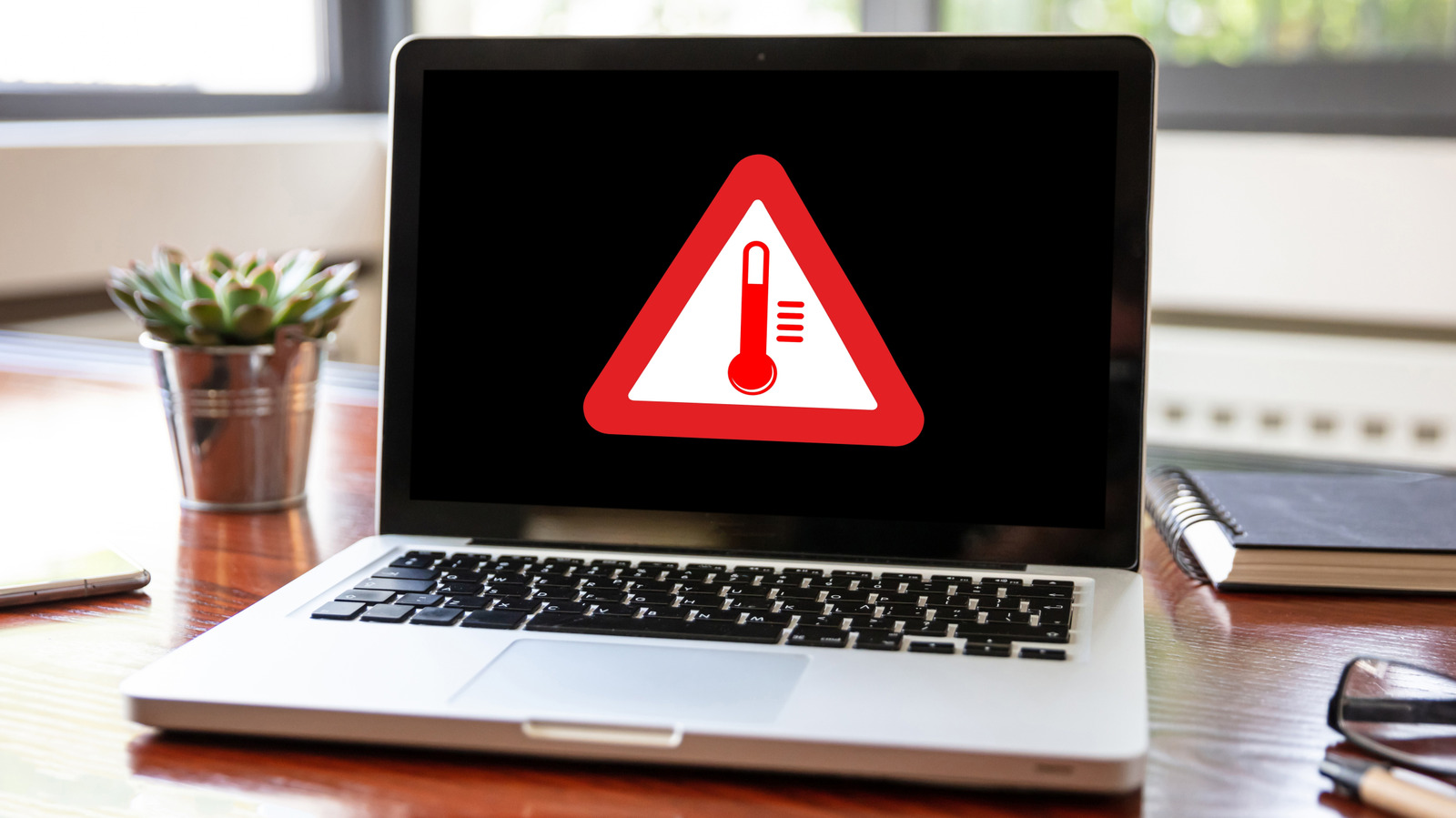
It could point to many things, including aggressive power profiles, background software updates or even dust building up.
Laptops generate heat. You can't really avoid it. Even energy-efficient models are still producing some level of heat. To try and keep things cool, your laptop fans should kick into action when you're doing something that pushes it hard, like gaming. By design, most laptops will ship with adjustable fan speeds that keep temperatures cool without too much noise. You'd usually expect the fans to quiet down, although they won't necessarily stop completely.
That isn't always the case, though. You might hear your laptop fans spin up even when you've closed all your apps. Power settings can have an impact, but so can dust and debris clogging up your case. You'll need to work out whether the noise is normal, because if it isn't, you'll need to fix it.
Closing the windows on your desktop doesn't stop everything happening on your laptop. Apps run in the background, with running processes that continue performing tasks under the hood without you realizing. These all create demands on your processor, RAM and storage. More power means more calls for the fan to spin.
Dell, for instance, recommends reviewing your startup apps to keep the loads down on your CPU, which should help prevent your fans from spinning up unnecessarily. You can review these in Task Manager by pressing Ctrl + Shift + Esc, selecting Startup apps, and disabling anything non-essential.
Other essential maintenance tasks will cause demands while your PC isn't active, too. Windows Update will do it, as will search indexing, which catalogs your files so that you can easily search for them later. That initial indexing process can take a few hours, according to Microsoft. The same applies to MacBooks, and you can use Activity Monitor to see which background apps are using the most power.
Imagine a set of scales. You can tip them one way or another, or get them perfectly balanced. Your laptop power settings work the same way. On a Windows laptop, for instance, you can switch between modes that prioritize energy efficiency, performance or a balance between the two. The most aggressive option, for best performance, will prioritize speed over saving power.
This can allow for higher power consumption under load, which'll produce more heat and make the fans more likely to kick in. You can change these settings on Windows, for instance, via Settings > System > Power & battery > Power mode. These settings will change when you've plugged in your laptop compared to when it's running on battery, too.
Your laptop might come with an app that lets you set your own cooling settings, even if you've changed Windows' own settings. For example, some Dell laptops ship with an ultra performance mode that'll increase processing power and cooling fan speeds. Switching to quiet mode reverses it, although that will reduce performance and push the temperatures up when you're using your laptop.
You'll only know what settings work best, as far as cooling is concerned, by trying them out. Try each setting at a time, then push it through your usual use. You'll want performance mode if you're doing something like gaming, because you'll want maximum power and cooling. For lighter work like typing up documents, you might manage better by switching to balanced or energy efficiency modes.