// ENGADGET — MOBILE & WEB
How to improve audio quality on your Android phone with Bluetooth or wired headphones
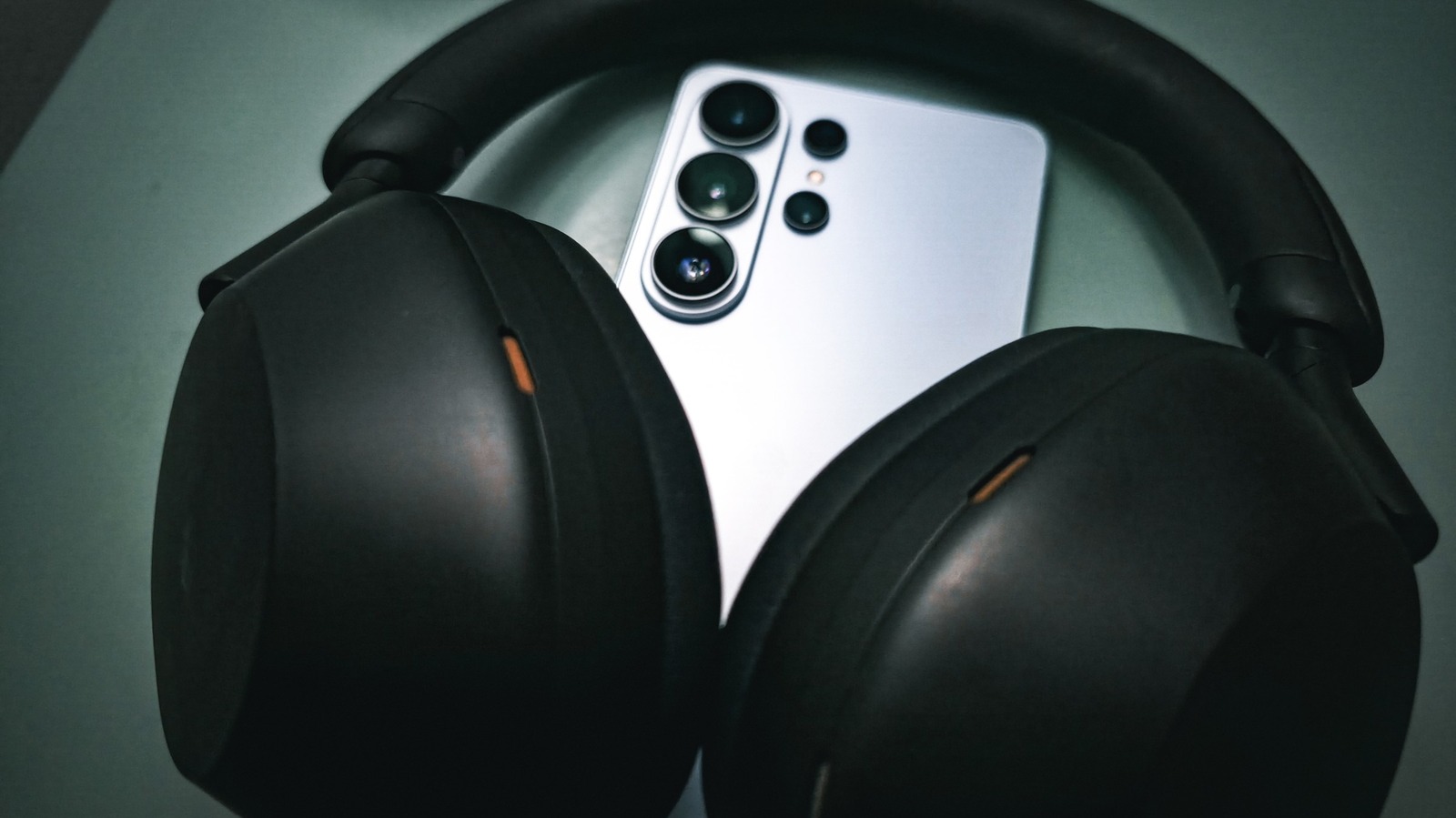
There are multiple ways to adjust the audio output on your Android phone.
A great pair of headphones or in-ear monitors alone isn't enough to get the best sound quality your Android phone can deliver. Digital audio is deceptively complex — you're essentially turning sound waves into code and then back into sound waves — but once you have a handle on the basics of how it works, you can eke better sound out of your devices.
To that end, it's important to understand how Android directs audio to your ears, and which layers in between can alter that signal. We'll also cover how to choose an app that supports lossless audio, as well as how to EQ your headphones for either a neutral sound or a profile of your choosing. Ultimately, you'll be able to choose whether you'd like to go the extra mile for full, audiophile-grade sound or simply get the best results from your music streaming app.
There are some quirks to the way Android handles audio. Just plugging in your headphones won't automatically translate to the highest quality. Android's signal chain — the path audio follows through the system before reaching your ears — flows from the audio source (the app you're using to play your media) to the operating system, where a service called AudioFlinger passes it off to other layers like the mixer, where it might have effects applied or duck for a notification sound. This is where things get funky for audio enthusiasts, since we're looking for the pure sound signal in as unaltered a form as possible. After going through the mixer, audio is passed to the interface, technically known as the hardware abstraction layer (HAL), which transmits it to your hardware (wired or Bluetooth playback devices or your phone's speakers).
While all this is taking place, AudioFlinger is also sampling and downmixing the audio. By default, everything is processed in 32-bit floating point, which is to say, far higher quality than even a true lossless file is likely to need. Audio is then output at a sample rate of 48kHz with either 16 or 24 bits of depth. Since most lossless audio available to consumers tops out at 24-bit, and since human hearing sits below a 48kHz threshold, most people will be satisfied. But that behavior also means that the Android system is almost always making adjustments to audio. The average listener truly should not care about this and can skip forward a couple of paragraphs. But for those who want to go above and beyond in search of true, mathematical precision, things get a bit messy.
Mathematical precision in audio is also known as bit perfection, which means audio that remains untouched by mixing, resampling or other alterations along the audio chain. If the file you hear is mathematically identical to the one in your player, it is bit-perfect. While bit-perfect audio played from a lossless file is the gold standard for audiophiles, it actually cuts against another important aspect of achieving good sound quality that we'll cover later: EQing your headphones, which by definition alters the audio signal before it reaches your ears. However, because your phone may be applying its own changes to your audio before it reaches your ears, we need to get rid of any preexisting processing so that we can apply our own, custom tuning.
This is where lossless USB audio comes in. Starting in Android 14, an app can now address the mixer directly to tell it whether audio should be passed through the mixer as usual or sent directly through the audio framework to the HAL. But that only works if every layer of your audio stack is on board. Your phone maker must have implemented lossless USB audio, your player app must have done the same, your DAC must natively support the sample rate of your files, and so on.
That's a lot of information, but the steps you can take to act on it are simple. First, turn off any extra processing your phone is doing to your audio. That means an EQ in your device settings, any kind of Dolby or other spatial enhance