// ENGADGET — INTELLIGENZA ARTIFICIALE
Don't like Google Health's AI Coach? Here's how to turn it off
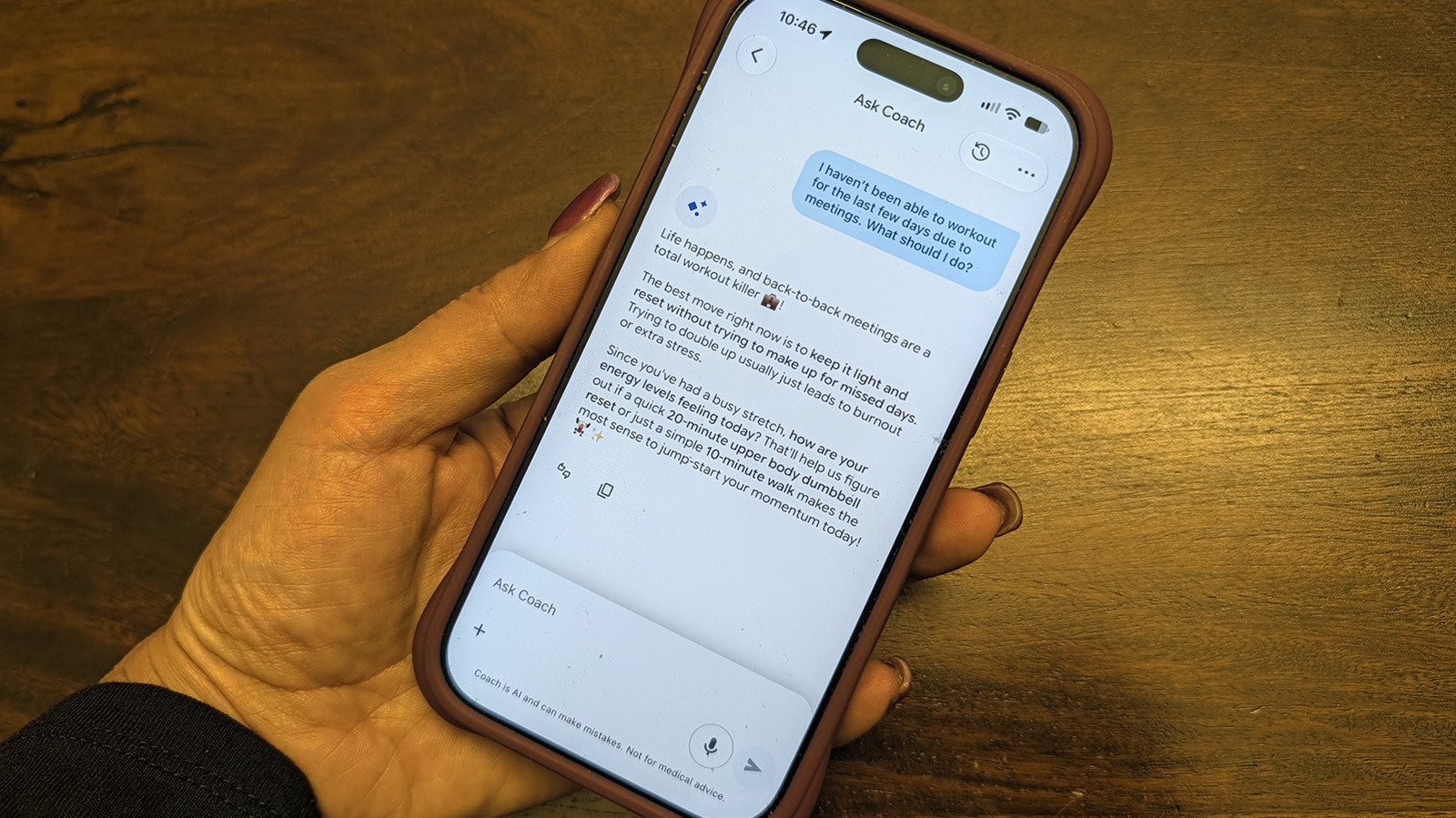
If you don't like Google Health's AI Coach or need a break from its constant advice, the easiest way to get rid of it is to cancel your Google Health Premium subscription, since AI Coach does not come with the free Google Health tier. But what if you just want to hide it for a bit and continue to enjoy the other benefits of Google Health Premium? These include personalized sleep summaries, advanced sleep tracking algorithms, Sleep Score, Health Guardian that tracks noticeable changes in health and wellness, cycle predictions, nutrition tracking and more.
Don't worry, because there is a way to keep Google Health Premium but temporarily (or permanently) set aside the Gemini-powered AI Coach in the app settings thanks to an update released in August 2026. It's a simple matter of going to your privacy controls and toggling the feature off. And you can turn it back on again any time you want.
In the Google Health app while subscribed to Google Health Premium, tap your profile photo in the top right corner. Select Your data in Google Health then scroll down to Feature privacy controls and select Manage feature privacy controls. Select Google Health Coach and the Turn off button. That's it! You can also go to your profile photo > Google Health settings > Coaching, and turn off Health Coach from there. Another option is to change Coach messages on Today from Standard to No Coach insights, which will only show basic updates and no messages.
Without this feature, you won't get personalized guidance, recommendations, or summaries, which is one of the key features of Premium when used alongside a tracker like the new Fitbit Edge (see our Fitbit Edge review). You also won't be able to tap the Ask Coach button to ask questions and chat with the coach about your health and wellness. This also means you won't be able to use this function to log your meals, though you can do that through manual logging.
None of your previous data will be deleted, and as mentioned, you can turn AI Coach back on at any time. However, to do so, you can't return to the same menu. You need to tap the still visible Ask Coach button on the bottom, right and select Unlock Coach to begin the restoration process.
If you find that notifications are the issue, go to your profile photo, Google Health settings, Push notifications, and turn Coaching off so you aren't pinged whenever there's coaching advice. You might prefer starting with this step before turning it off altogether.
Whether it's for privacy reasons, you find it too intrusive or repetitive, or you want to take a break from personalized insights because you're dealing with illness, injury or just in a personal funk, there are many reasons to put a pause on AI Coach. But for some people's needs, it's one of the most valuable aspects of Google Health Premium. So, if you plan to turn it off for any significant length of time, you might be better off cancelling Premium and sticking with the base-level free Google Health app if you can live without the other upgrades, too.
Google Health AI Coach can be useful if you adjust settings to ensure it notifies you only when and how you want. I have used it, for example, to log the exact weights I lifted during a strength training session and to walk me through adjusting my workouts around a shoulder injury. (AI Coach does not provide medical advice.) I also use it as a simple way to snap a photo of my meals to log protein, carbs and fat intake. The more you interact, the more it learns about unique aspects of your lifestyle.
Admittedly, though, it can be annoying with repetitive advice to do the same thing every day that I'm already doing, like a 30-minute strength session and a light walk. You may eventually realize you ignore the insights more than you read them. If you do need a breather, it's easy to quiet the noise.